Assignment Rules
Assignment rules (Lead splitter) allows to assign a lead to the department automatically based on the country origin.
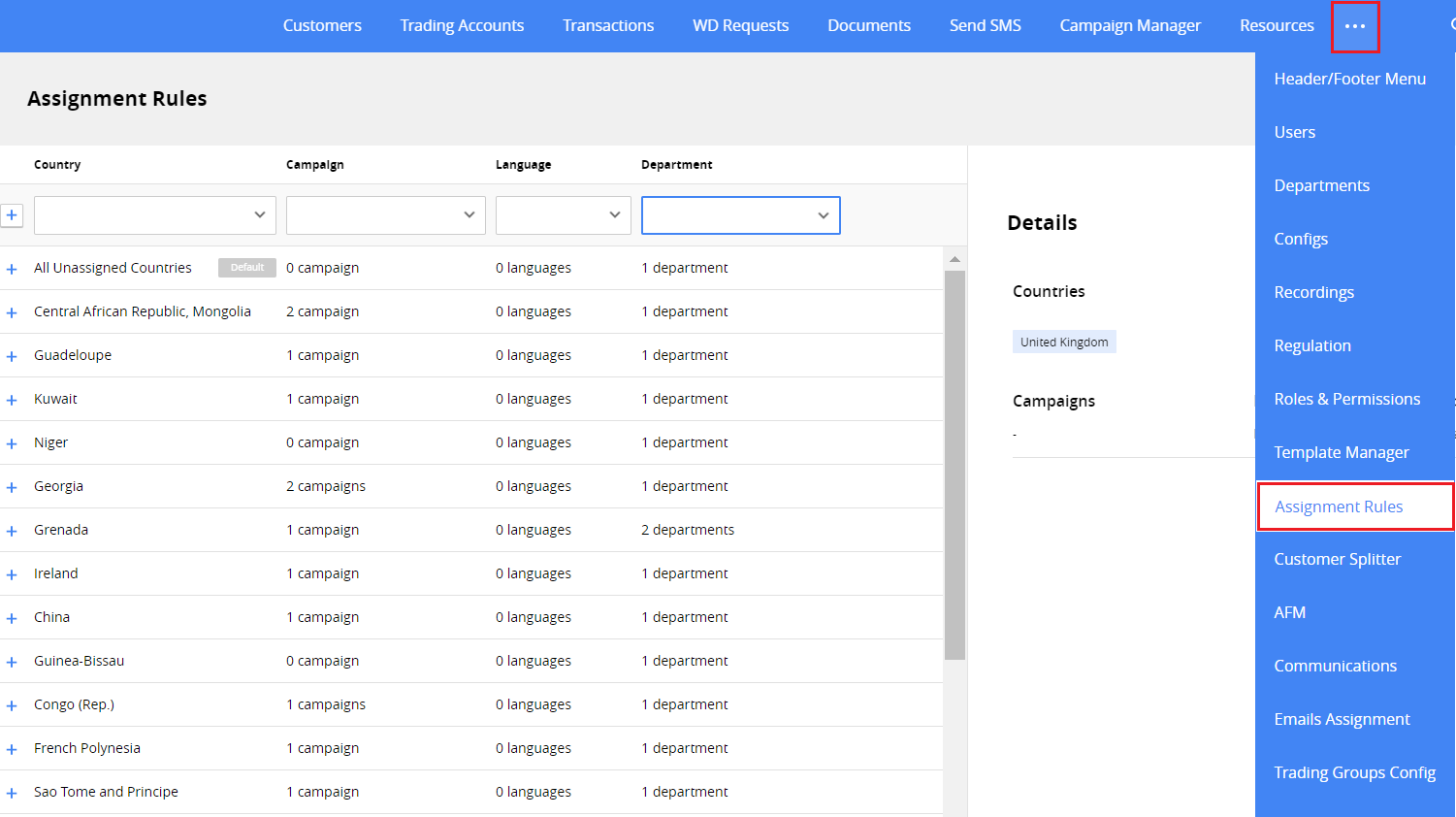
Permissions. Lead Splitter > Manage Assignment Rules.
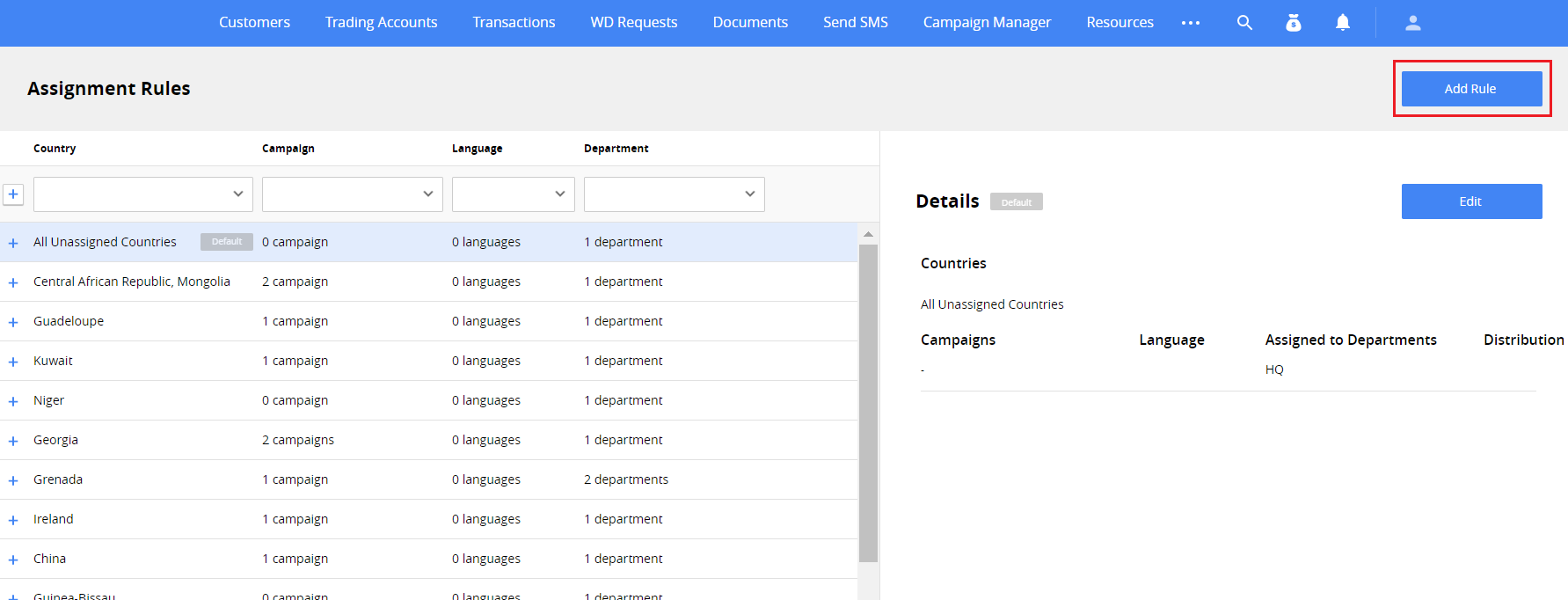
The section consists of the country’s grid and the assignment details.
Use the filters on the top of the grid to find the row by country, campaign, language, or department.
If the country were not added to the list in a separate rule, it would be presented in the All Unassigned Countries row. This row is always shown in the list and is used as default.
To expand more details of the rules in the grid, including the list of campaigns, departments, and the distribution percentage, click  on the top left of the grid.
Add an assignment rule
- Click Add rule button at the top right.
-
The new rule will be displayed on the right. Select one or more countries and add it to the list.
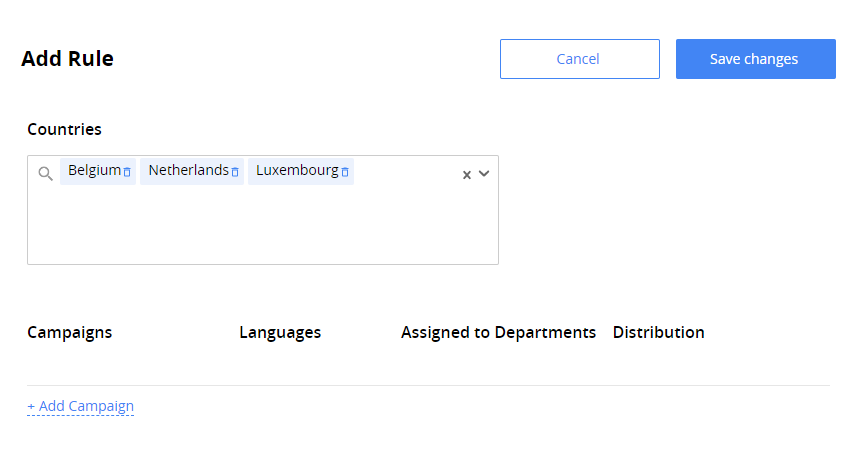
Note. You can select only among countries that have not been added before. If you cannot find a country, it is likely that a rule already exists for this country.
-
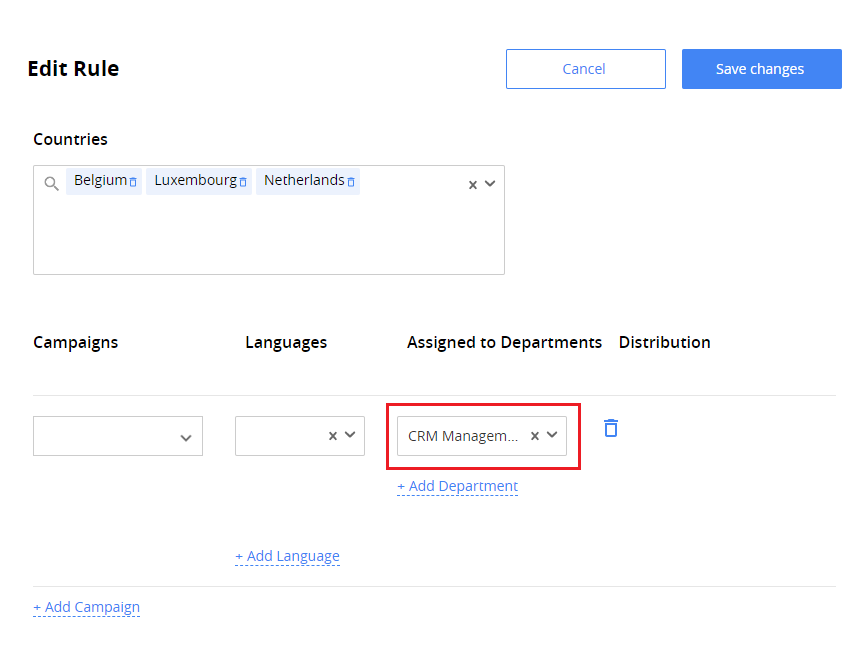
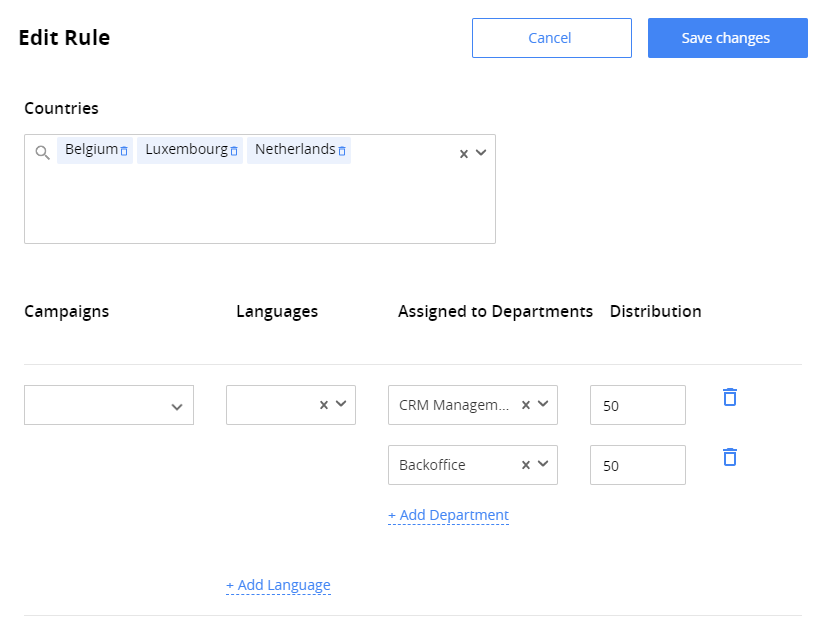
The rule has multi-level structure. You can set multiple campaigns, languages, and set assignment to multiple departments. In the Assigned to Departments field select a department.
-
To automatically distribute the leads among several departments, click Add Department and specify the percentage in the Distribution column. The sum of the distributed departments should be equal 100%.
-
You can also select one or more campaigns and a language if needed. If you add more than one language, you need to specify the department for each language.

-
Click Save changes when it has done.
As a result, the new row will be added to the grid. The leads from selected countries will be automatically assigned to the specified departments.
To edit a rule, select it in the grid and click Edit button on the top right.
To delete a rule, select it in the grid and click
 button on the top right.