Trading Accounts
You can see the list of all registered customer trading accounts in the grid of the Trading Accounts section.
Permissions. Trading Accounts -> Access to Trading Accounts.
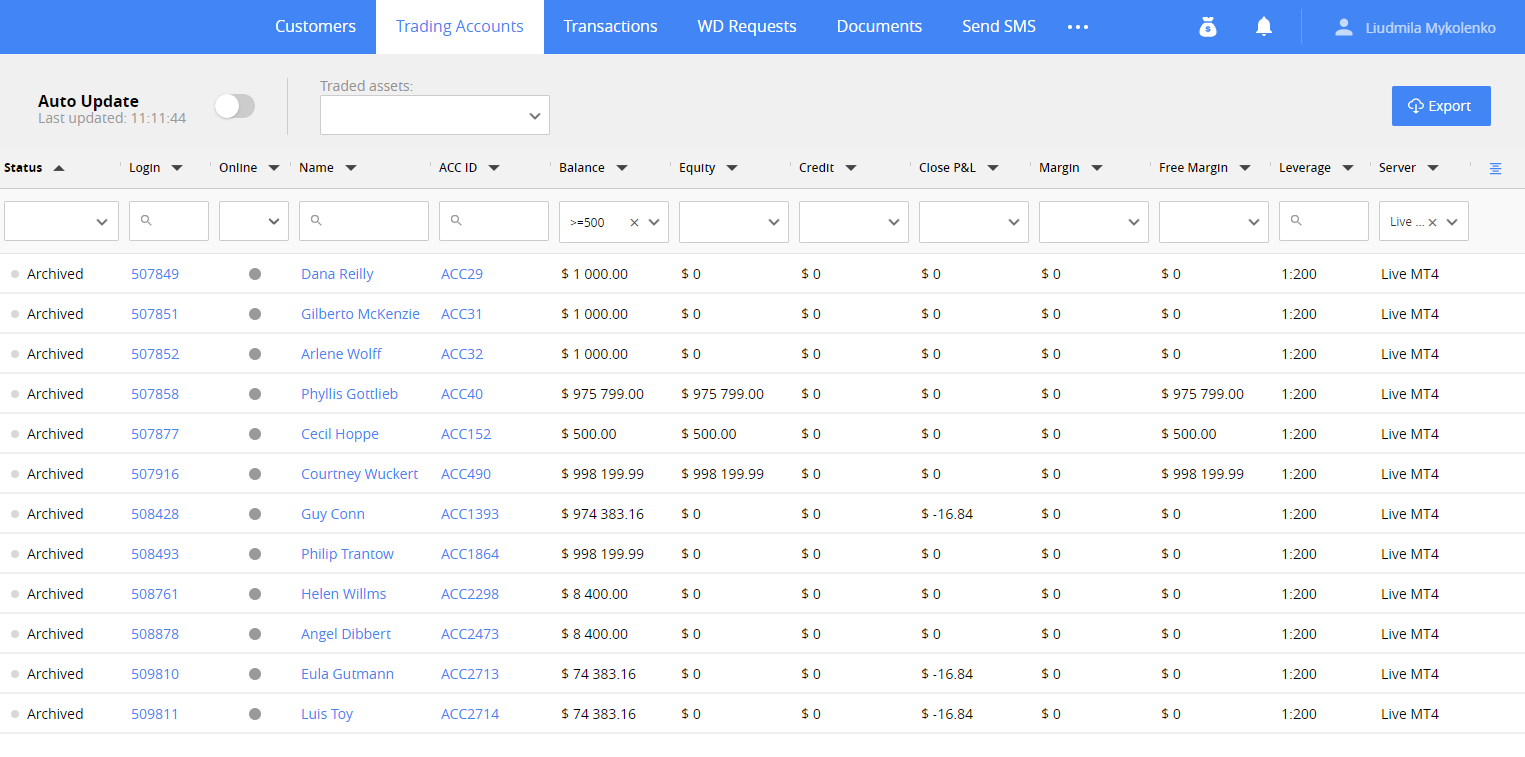
A customer can have trading accounts of two types:
Live – an account in MetaTrader which allows a customer to trade with real money.
Demo – an account in MetaTrader which allows doing mock trading.
You can find the information about trading account type in the Server column.
The first live trading account is created automatically when the first deposit transaction is approved. A demo account is created automatically or by request of a customer, depending on the customer's current state.
Customers can have more than one live and demo account, and the additional accounts are created via CRM only.
The trading accounts grid contains the main information on the account. You can customize the columns by clicking the corresponding button in the grid.
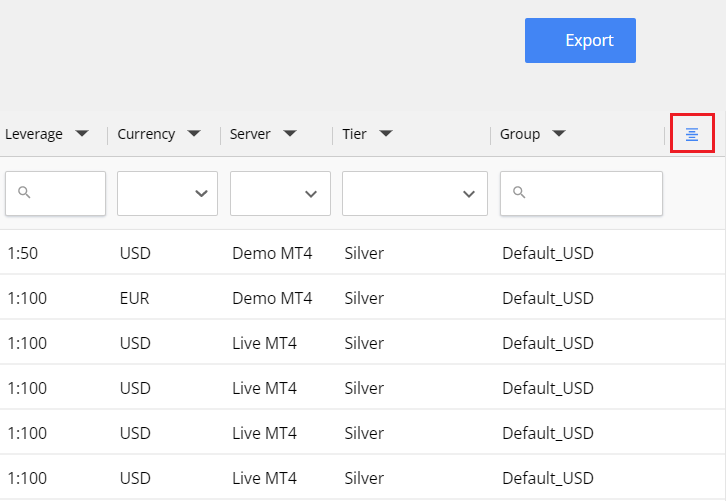
Note. Due to screen resolution, the button may be out of sight. Please scroll to the right side if you can’t see the button.
Auto Update–switch on to see the latest data in the grid without refreshing the page. Here you can also see the date and time of the last data updates.
Note. The update time is configurable. The minimum available update period is 10 seconds.
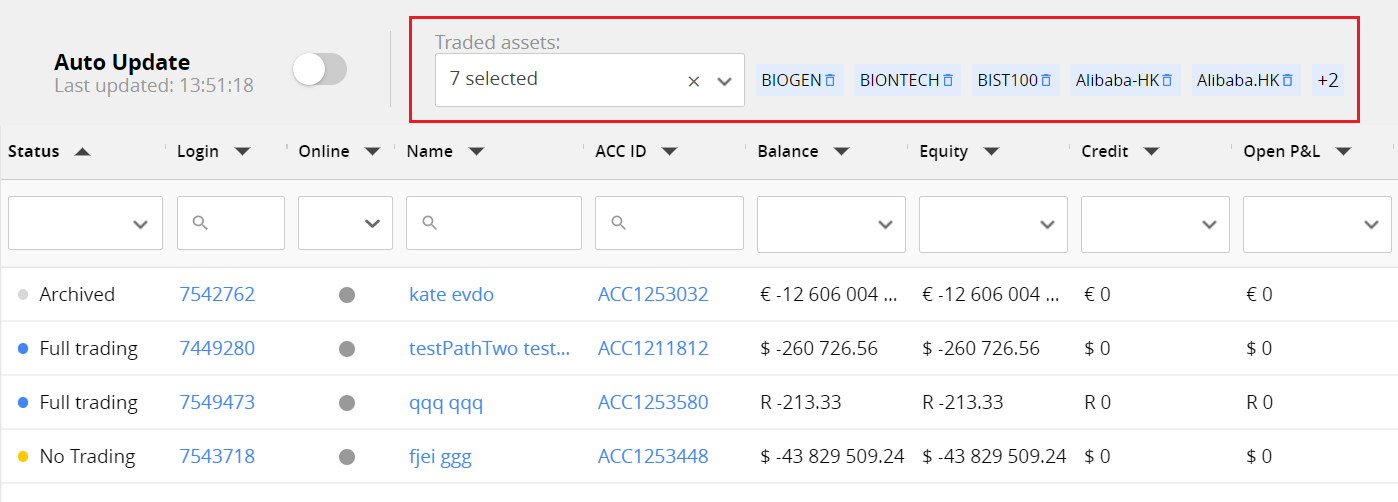
Traded Assets–an additional filter that allows you to select only accounts that traded some specific assets (currency pairs, commodities, shares, etc.). It searches accounts that have at least one trade with at least one of the mentioned assets regardless of the type of order (opened or closed).
To remove one of the assets from the list, click  button.
Trading Accounts Card
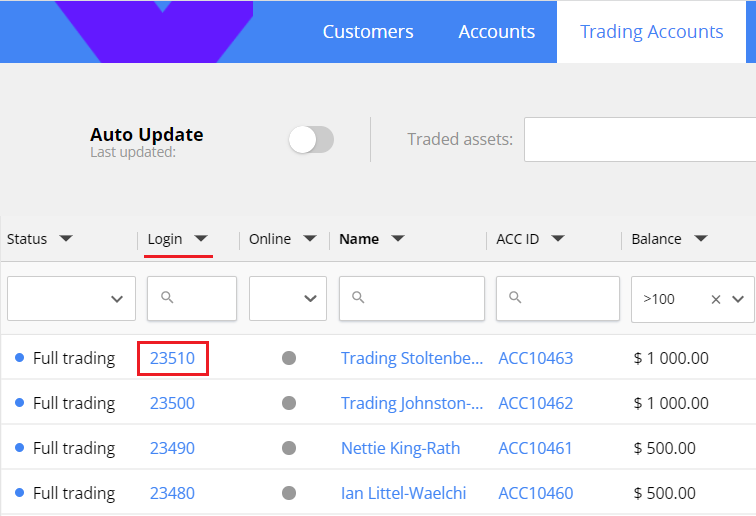
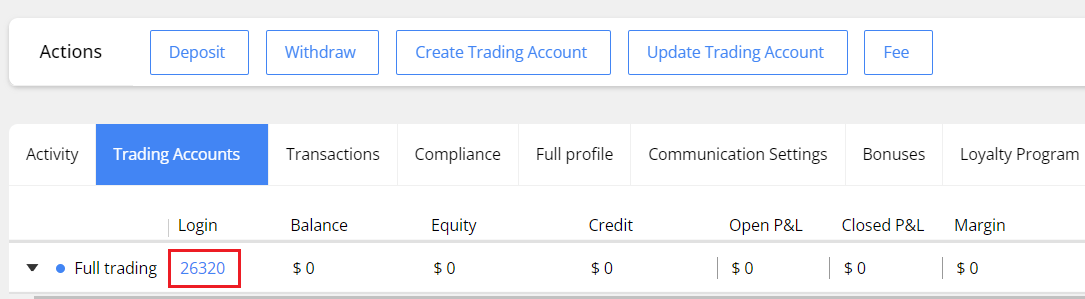
To open the full information about the trading account and view all customer trades, click the link in the Login column.
You can also open the trading account card from the customer card, using the link on the Trading accounts tab.
The card contains the information about all customer trades.
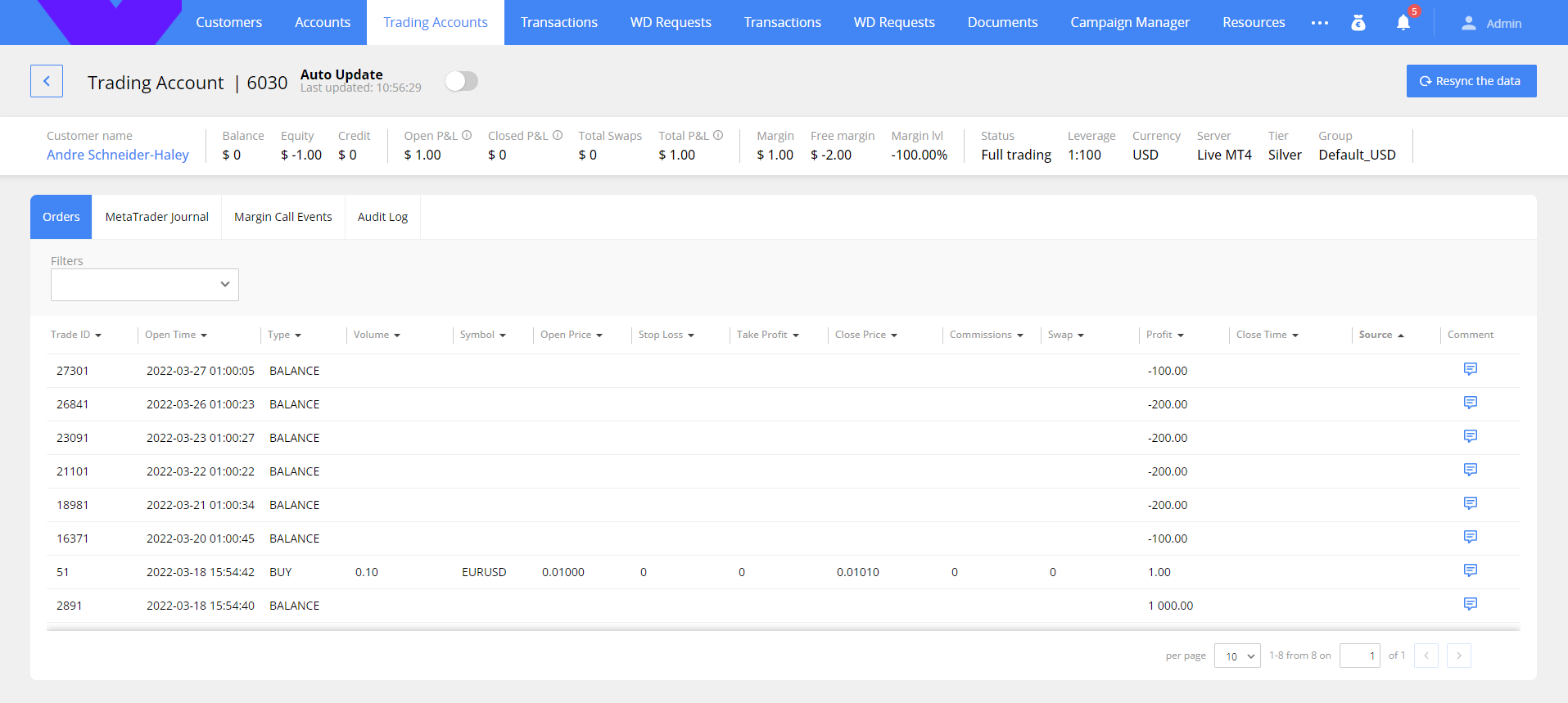
At the top of the card, you can see all the trading account’s statistics.

Resync the data–click the button to get the latest updates from server. This button is not available for trading account in Archived status. The button can be hidden by the Resync MT4 account data permission.
Auto Update–switch on to see the latest data in the trading account without refreshing the page. Here you can also see the date and time of last data updates.
Note. The update time is configurable. The minimum available update period is 10 seconds.
Orders
On the Orders tab, you can find all trades and balance operations performed on the trading accounts. You can select multiple filters to find the needed trades:
All trades
Open trades
Future trades (i.e., pending orders)
Closed trades
Balance (includes Balance and Credit transactions)
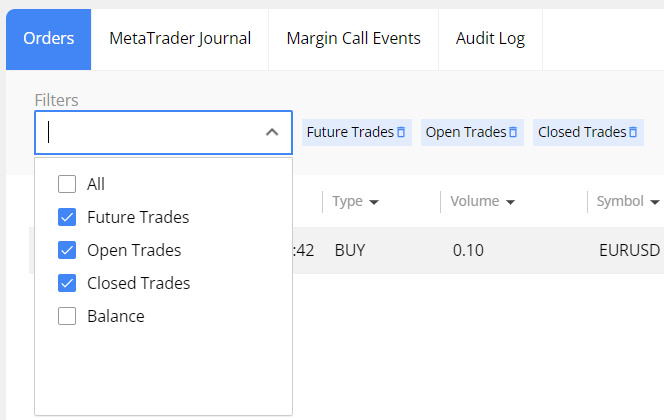
You can also sort the trades by one of the trade columns, for example, to see the most profitable trades.

Each trade displays the following information:
Trade ID: order ID in MT4.
Open Time: trade opening date and time in MT4 server time zone.
Type: Sell, Buy, Buy Limit, Buy stop, Sell limit, Sell stop, Balance or Credit.
Volume: the volume size including decimals e.g., 0.01, 1.00, 1.10.
Symbol: the asset being traded on the market. It can be currency pairs, futures, shares, etc.
Open Price: the asset price for which the trade is opened on the market.
Stop Loss: the price level for auto closing of the trade to limit losses for the trade.
Take Profit: the price level for auto closing of the trade to fix the profit gained by the trade.
Close Price: the actual asset price level on which the trade was closed or the current price for pending orders or open trades.
Commissions: the fee charged for making trades.
Swap: the fee charged for holding an open trade for the next day (charged overnight).
Profit: the earnings achieved by the customer in the currency of the account.
Close Time: the time of closing the trade in MT4 server time zone. It’s empty for non-closed trades and transactions.
Comment. Additional information about the trade. To view it, hover the comment icon.

Note. Due to screen resolution, some fields may be out of sight. Please scroll to the right side if you can’t find the column needed.
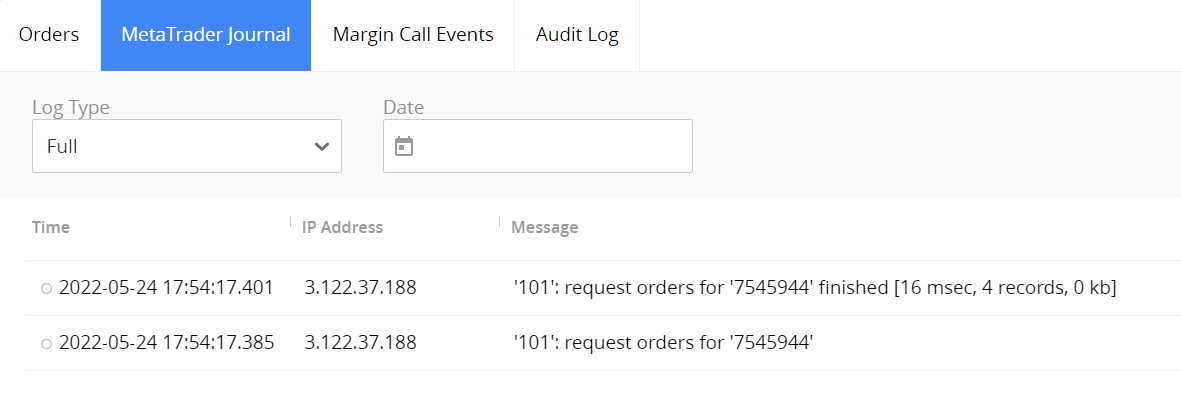
MetaTrader Journal
Use the tab to get information from MetaTrader that might be useful for troubleshooting.
Filter the data by log type or date to find the information needed. It's possible to filter data for one specific day only (due to performance limitations). If the filter is empty, it shows the data for the current day.
Margin Call Events
Use the tab to get the information about all the margin calls appeared on trading account. Use the calendar to find margin call events on specific period.
The tab shows snapshots of the account details when the account was in the margin call. The record is saved immediately right after Margin Level value of the account hits 100%. If Margin is already below 100% the new record is saved approximately once per 10 minutes.

Audit Log
Use the Audit log to view the history of changes on trading account, including:
Creating an account
Updating an account
All other changes made with the account.
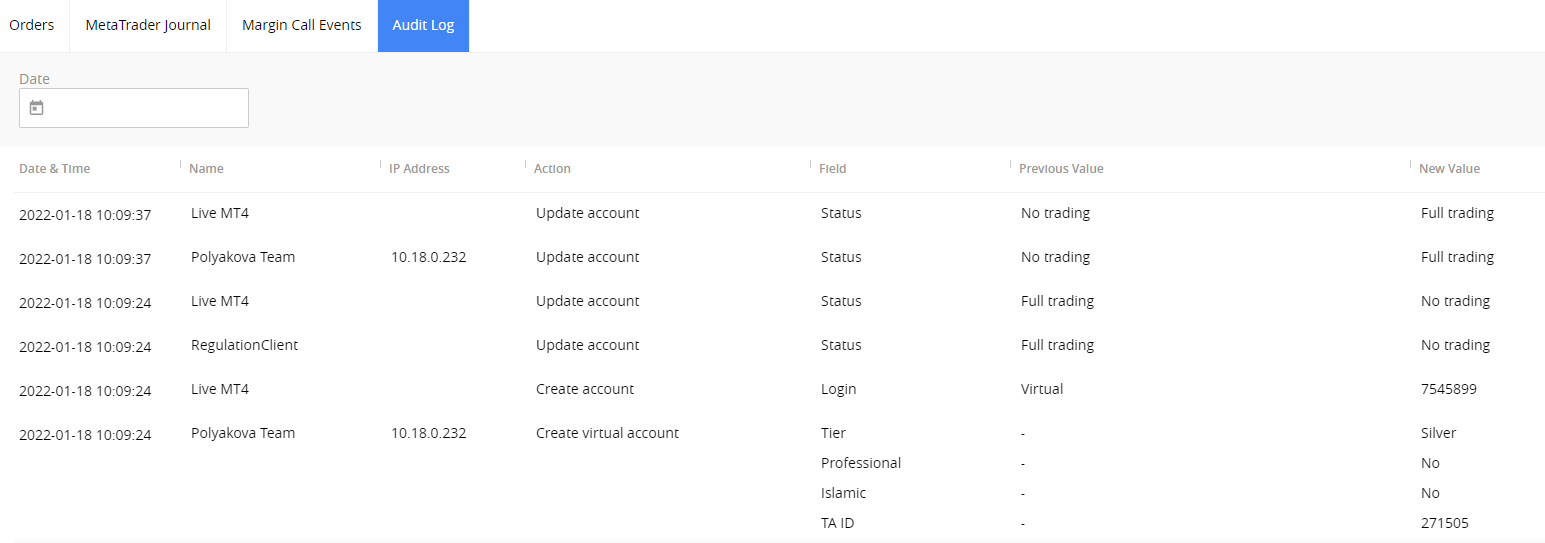
Use the calendar to find logged events on specific period.
The records in the log are displayed starting from the latest ones.
The information is divided into the following columns:
Date and time of change (user local time is used)
Name of the user who performed the change, and their IP address
Name of the action performed, and the field affected
Previous and current field values.
In case any action is initiated via CRM there are two records:
the action performed by CRM user or the system itself
the result of applying the action on MT4 side.
If the action was performed directly from MT4 server, then only one record from MT4 is displayed.
Trading account status
You can see the trading account status in the grid.
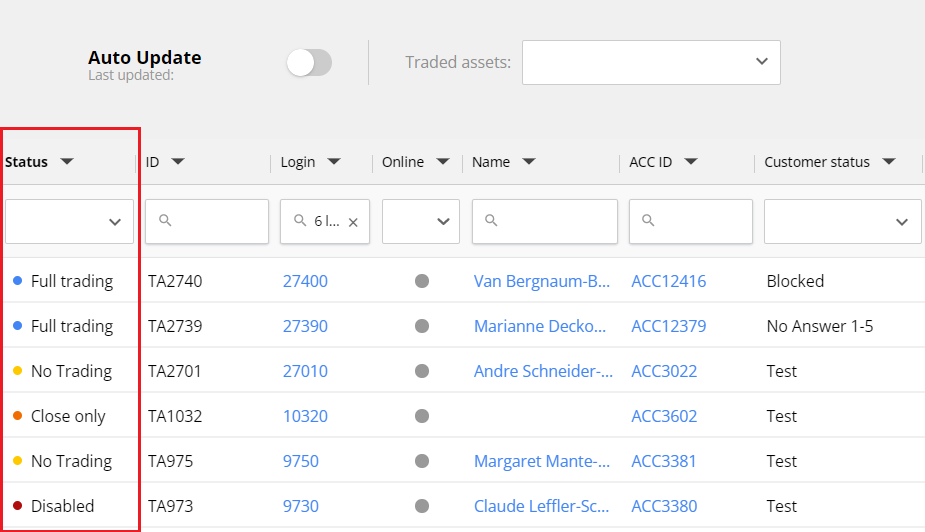
In the same way, the status is displayed in the customer card.
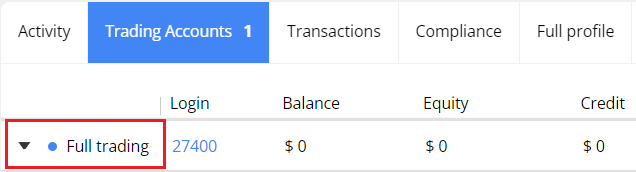
The status can be one of the following:
Full Trading – trading is allowed (blue icon)
No Trading – the customer can login but can't trade, including being unable to close opened trades or cancel pending orders (yellow icon)
Close only – the customer can login and close opened trades but can't open new trades or place pending orders (orange icon)
Disabled – login isn't allowed (burgundy icon)
Archived – the account is archived or deleted on MT4 server and cannot be updated. Also, it’s not possible to create a deposit, withdrawal, credit in, or credit out for it (grey icon).
To change the status, open the customer card and click the Update Trading Account button.
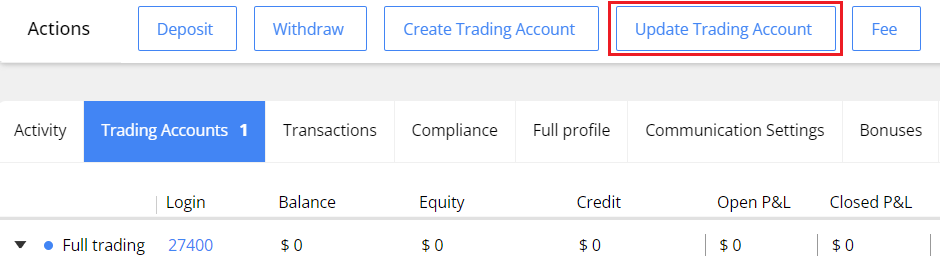
See more in Update Trading Account.
All statuses could be changed manually, except Archived status. The Archived status is set only automatically.
Create Trading Account
You can create one or more trading accounts manually for Client and Depositor customer types. Thus, a customer can have several accounts in different currencies or account types (Demo/Live).
Permissions. To create a trading account, you must have an Edit Trading Account permission.
To create a trading account:
-
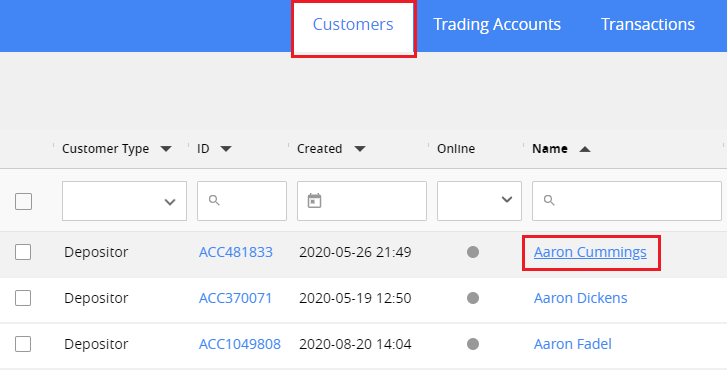
Open the Customers section and click the name or ID of the customer.
-
Click the Create Trading Account button at the bottom of the customer card.
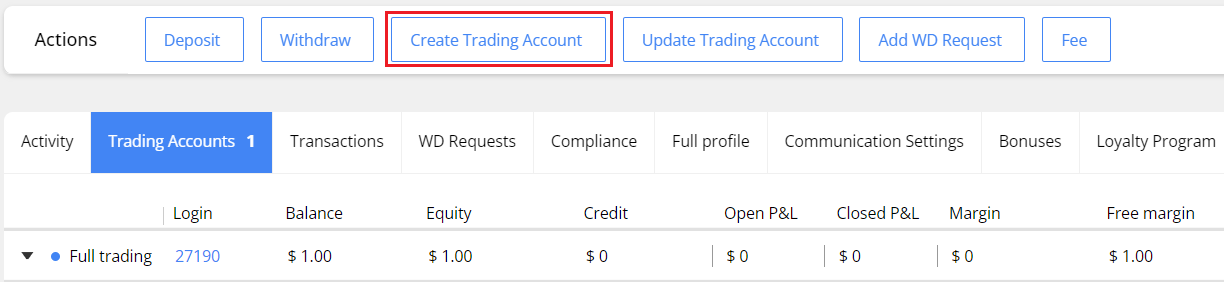
Note. The Create Trading Account button isn’t available for Lead customer type.
-
In the window opened, select the server, then check the values in the other fields.
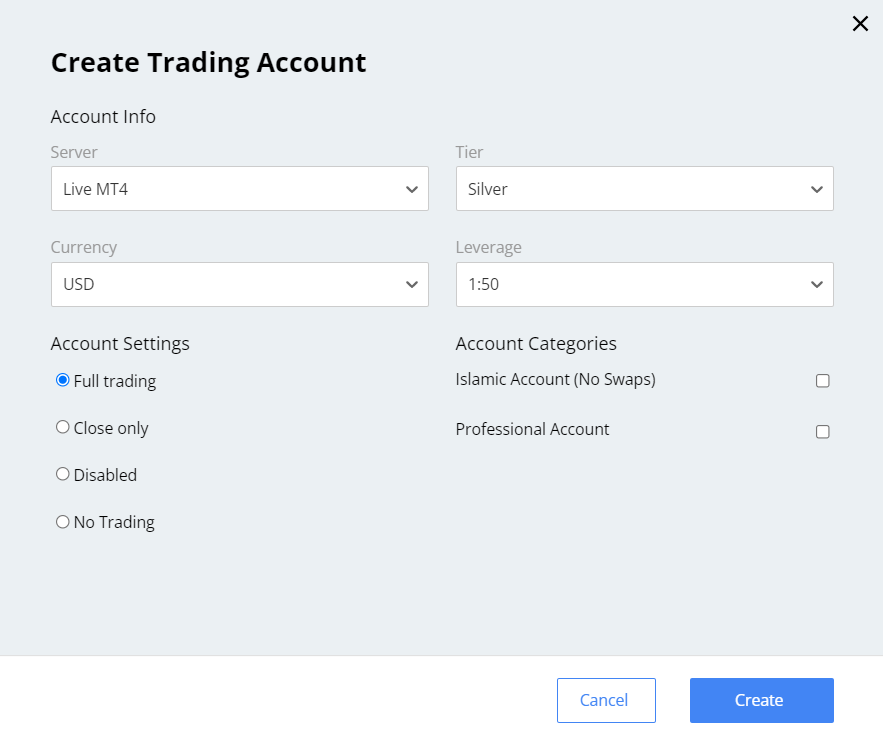
Server: Live or Demo account. After you set the value, the other fields will become available and filled in with default values.
Tier: for example, Silver, Gold, or Platinum. You can update this field later.
Permissions. To set the Tier, you must have Set Tier for Trading Account permission.
Currency: the available values depend on the tier and the customer’s country. After creating a trading account, the currency cannot be changed.
Leverage: the leverage ratio to set for the trading account, for example, 1:50, 1:100.
Note. The default values and the list of values available in Tier, Currency, and Leverage fields are set up in the Trading Groups Config section.
Account settings: the trading account status: Full Trading, Close Only, Disabled, No Trading.
Permissions. To set the Disabled status, you must have the Set Disabled Status for Trading Accounts permission.
Account categories: additional options used for trading account:
Islamic accounts can have specific conditions instead of charging regular swaps. The conditions are set up on a specific MT4 group side.
Professional accounts are needed according to regulation rules on the EU market. When enabling this category, the customer's account is moved to the specific MT4 group with different trading conditions allowed only for professional traders (e.g., the ability to use higher leverage).
Note. The appropriate groups in the Trading Groups Config section must be set up to create an Islamic or Professional trading account.
- Click Create. The new account will be created and displayed in the list. The password is the same as for the Client Area login.
Update Trading Account
You can change the tier, leverage, or the account settings.
Permissions. To update a trading account, you must have an Edit Trading Account permission.
To update the account:
-
Open the Customers section and click the name or ID of the customer needed.
-
Click the Update Trading account button at the bottom of the customer card.

-
In the popup opened, select the account you want to update in the Trading account field. After that, you can change Tier, Leverage, Account settings, or Account Categories.

Note. The list of Tier and Leverage available are set up in the Trading Groups Config section.
-
Click Update after making changes. The new values will be applied and displayed in the Trading Accounts section.
Export trading accounts
You can export trading account data to a CSV file. To do this, click the Export button in the main grid.
Permissions: Trading accounts > Export Trading Accounts.
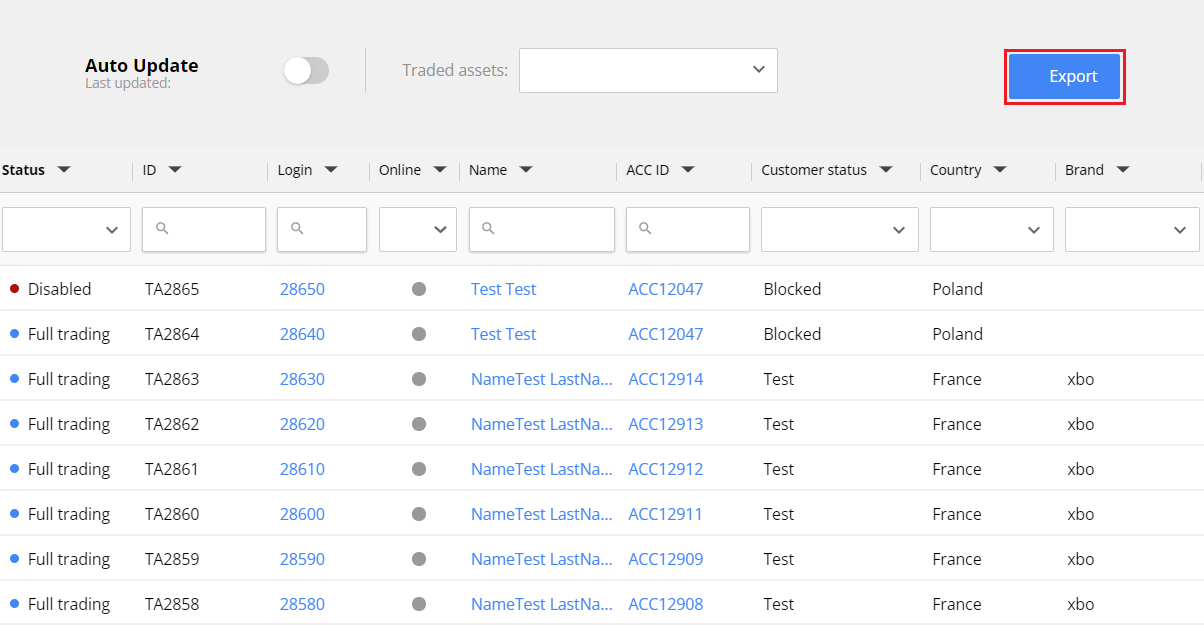
After confirming, the CSV file will be downloaded to your computer.
The file contains the list of customers from all pages on the grid with applied search filters.
The columns in the file correspond to the settings of the main grid.