Fees
Use the Fees section to set if you charge the customers for not trading, and adjust the specifics, such as when the inactivity fees get charged, custom fee settings per country, etc.
For the inactivity fee to be applied to a customer’s account, customers need to:
Have made a first-time deposit (FTD).
Have no open trading positions.
Their time of no trading activity needs to exceed the value of Inactive days in fee settings.
Time is calculated from the last trading activity or, in case the customer has no activity yet – from their registration date. Time is calculated in days. As soon as the customer starts trading activity, the inactivity fee timer gets reset for them, and inactivity charges stop.
To open inactivity fee settings, click Fees in the tab bar or if you can’t find it in the tab bar, click  button and select Fees in the menu.
Permissions: Balance > Edit Inactivity Fee Rates.
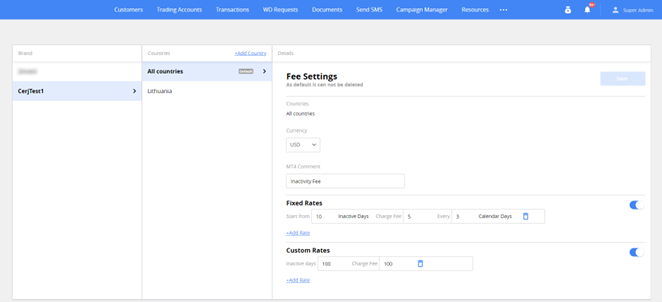
Fees section settings are grouped by columns, logically ordered from left to right.
- Brand. Choose the brand for which you will be setting the fees.
- Countries. Choose if you will be selecting the default fee settings for all the countries of the brand or the specific countries only. You can start to edit new country-specific settings by clicking +Add country at the column top.
- Details. Edit Fees settings for the countries within the brand you’ve chosen on the first two columns.
Setting up inactivity fees
You can have inactivity fee settings for:
Default. All countries in the brand.
Country-specific. Particular country of customer’s registration.
Default fee settings
To edit universal default fees, select the brand in the Brand column, and choose All countries from the Countries column.
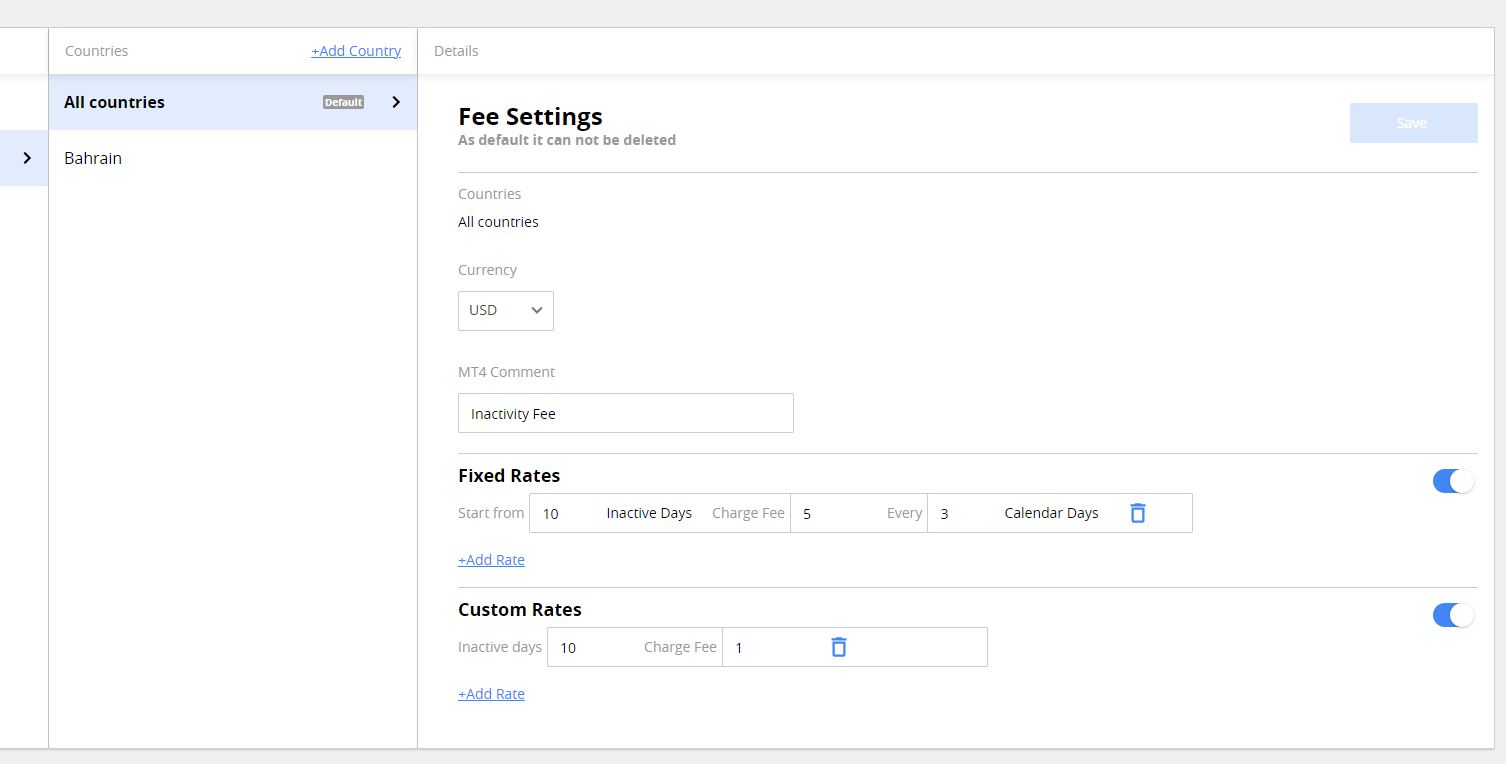
In the Details column, you can edit the following settings:
- Currency. The currency in which the fees are calculated and charged from the customer’s trading account (TA). Can be USD, EUR, ZAR, AUD, NZD.
- MT4 Comment. The message that the customer will see with the fee charge amount in their MT4 activity history. It is an “Inactivity Fee” by default.
Below is the area where you set charging rates for the inactivity fees. Inactivity fees can be of two types:
Fixed Rates

Recurring charges from the customer’s TA, where you can set:
- The number of days customers have not to trade for charges to start. From 1 to 999.
- The amount charged in the currency selected in the Currency field above.
- The number of days customers will be charged again if they remain inactive.
In the example on the screenshot above, customers will be charged 20 USD from their trading accounts every five days, starting from the fourth day of their inactivity.
Custom Rates

A one-time charge for the specific number of days customers remain inactive. Here you can set:
- The number of days customers have not to trade for the charge to take place. From 1 to 999.
- The amount charged in the currency selected in the Currency field above.
In the example on the screenshot above, customers will be charged 100 USD from their trading accounts on the 50th day of their inactivity, in addition to the fixed rates, if there are any.
You can add more than one inactivity fee for both fixed and custom rates. In that case, all the customers will be checked for meeting the criteria for each of them. To delete a specific rate rule, click  to the right of it, and click Save at the top right to update the settings.
Toggle fixed and separate fee rates separately by the corresponding switches to the right.
After you are done setting up the fees for the default rule, click Save at the top right.
Note. You can’t delete the default fee settings for the brand. To disable the default inactivity fee rates, toggle the switches for them.
Per-country fee settings
To edit per-country fees, select the brand in the Brand column, and choose the country you from the Countries column.
If the country you want to choose is not on the list, you can add the settings for it. To do that, click +Add country at the top right of the Countries column. After that, you will see a New item listed in the column, with the settings for it opened in the details column to the right.
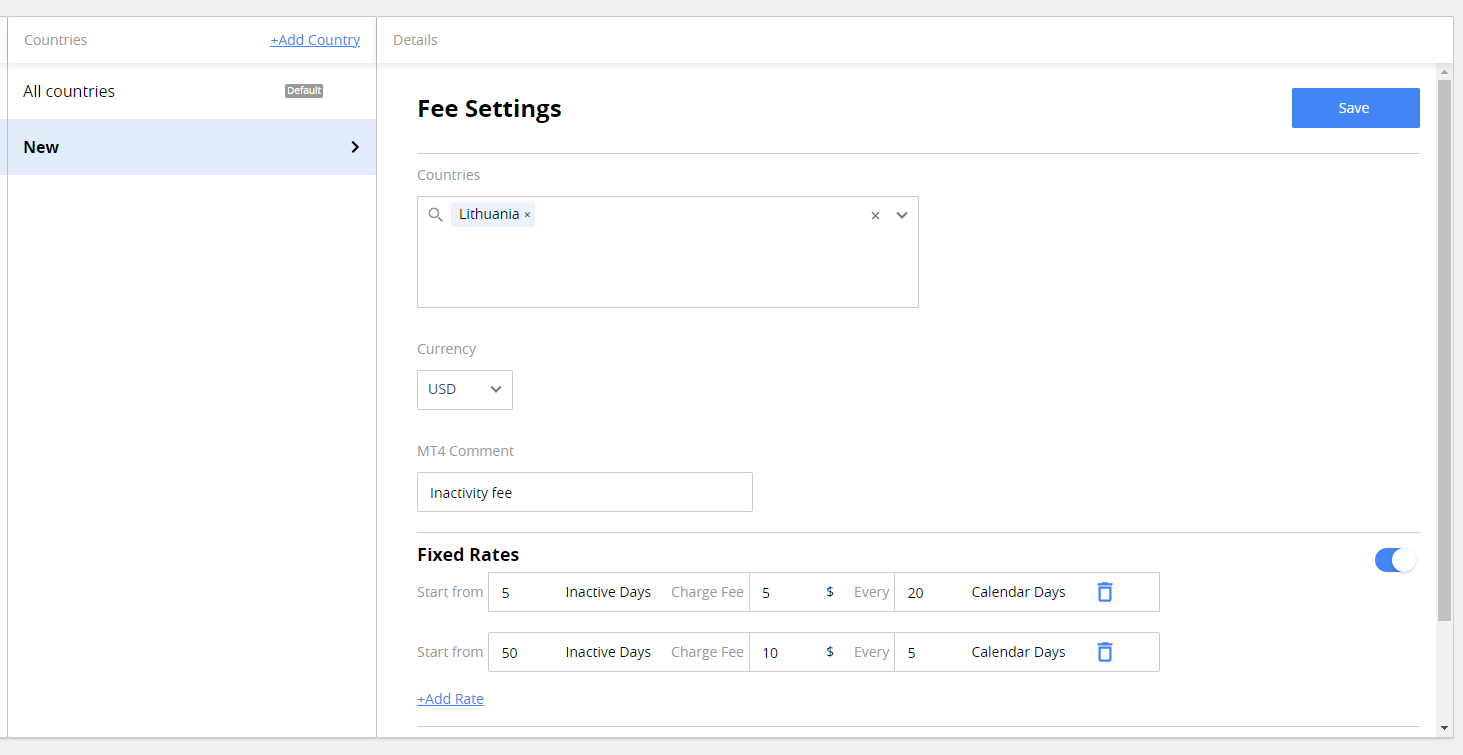
The name will change to the country or countries of your choice after you save the settings.
Note. If you select a few countries for country-specific fee settings, their names can be hidden in the Countries column list, making it hard to find them. To avoid that, consider creating a country-specific rule for one country only, even if their settings are identical.
The settings for per-country fees are identical to the default rule settings, with the only difference being the Countries field, where you can search and choose one or more countries you want the fees to be applied.
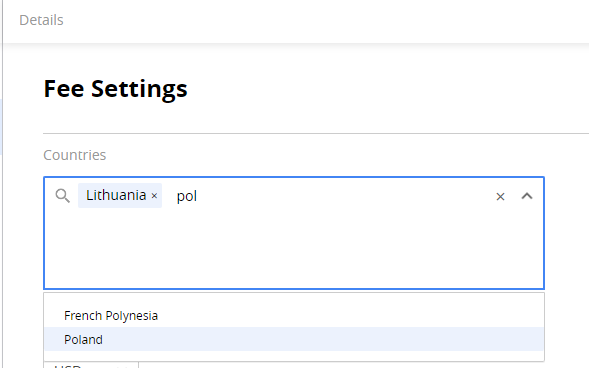
For the countries you have enabled these settings, they will be used instead of the default settings, which will be used for all other countries.
To delete the per-country fee, select it, and click  to the right of the Fee settings for it. After that, select Delete in the window that will open to confirm your choice.