Transactions
Use the Transaction section to track all payment operations of the customers. The transaction can be initiated by a customer or created manually by a CRM user.

Permissions: Transactions > Access to transactions.
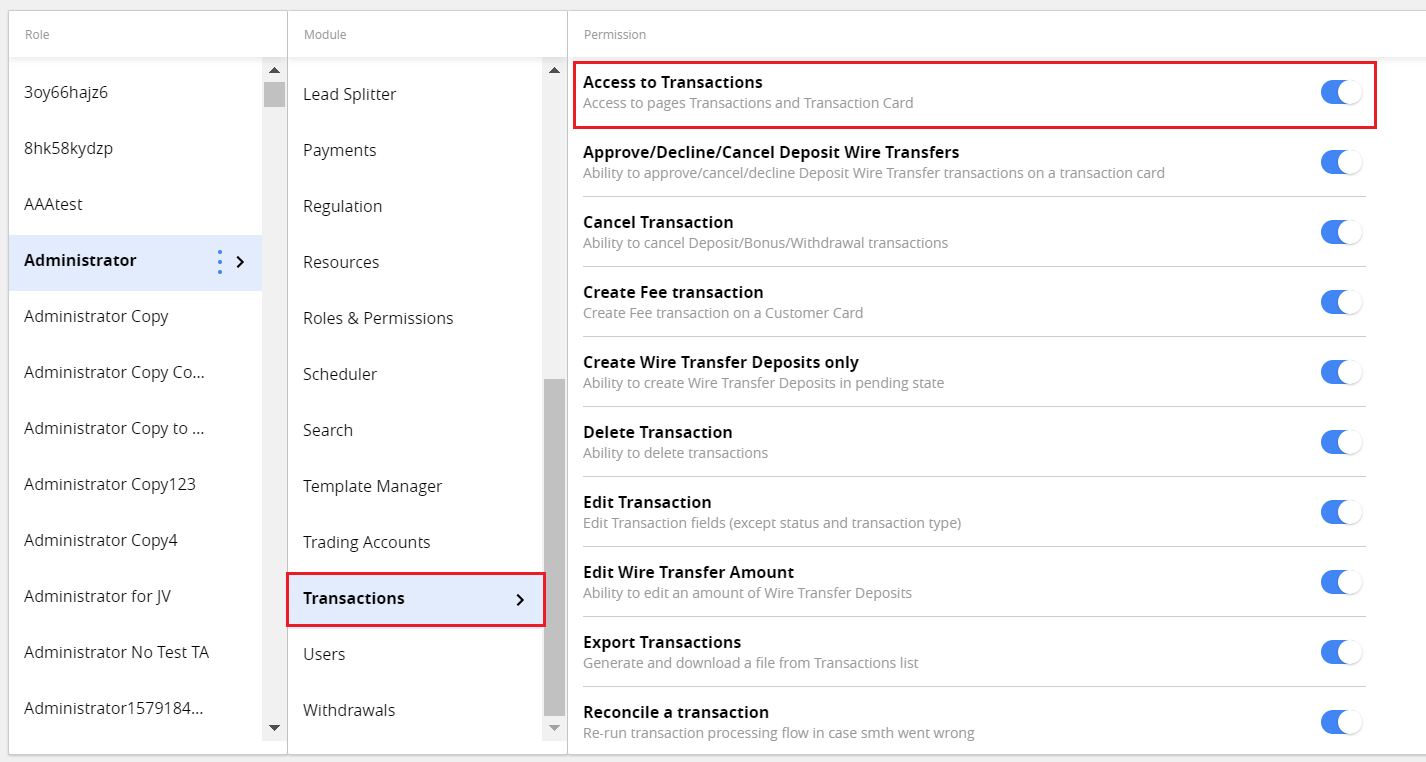
Only transactions to a Live trading account are displayed in the grid.
Note.To filter out the transactions, made to test how the feature works by QA users of the CRM and don’t show them in the grid, you must turn off Show test transactions permission.
The transaction can be created in such ways:
Automatically after initiating by a customer in Client Area,
Manually, by performing the action in the Customer card.
To find a transaction in the grid, you can use filtering and sorting tools.
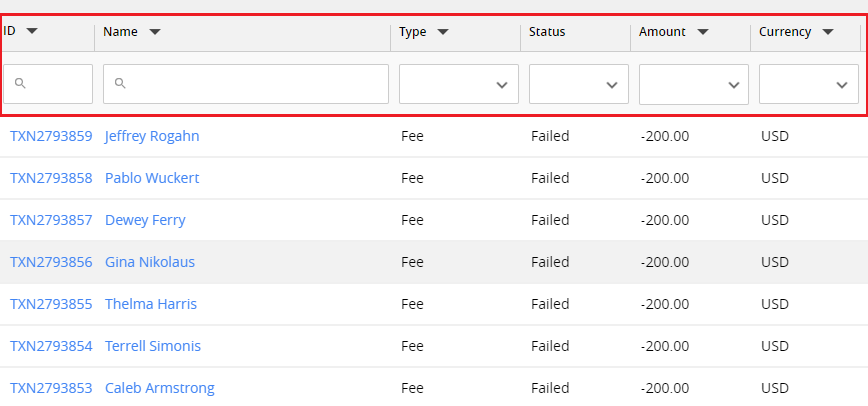
In the grid, you can see the transaction details: ID, contact name, type, status, amount, currency, etc. These columns are also available in the transaction card.
There are several types of transactions:
Deposit
Credit in
Credit out
Withdrawal
Fee
Bonus
You can customize columns in the main grid by clicking the corresponding button.
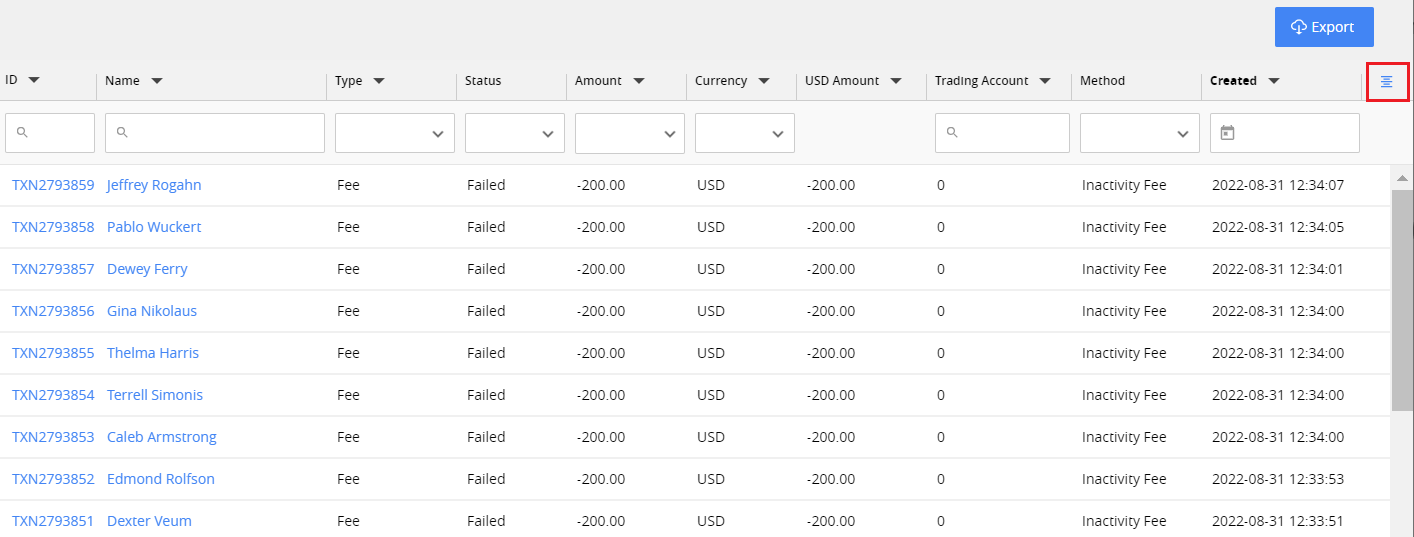
Note. Due to screen resolution, the button may be out of sight. Please scroll to the side right if you cannot see the button.
Transaction Card
All information about the transaction is collected on the card. To open it, click ID link in the main grid.
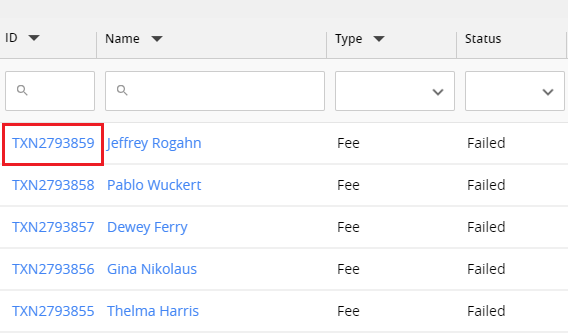
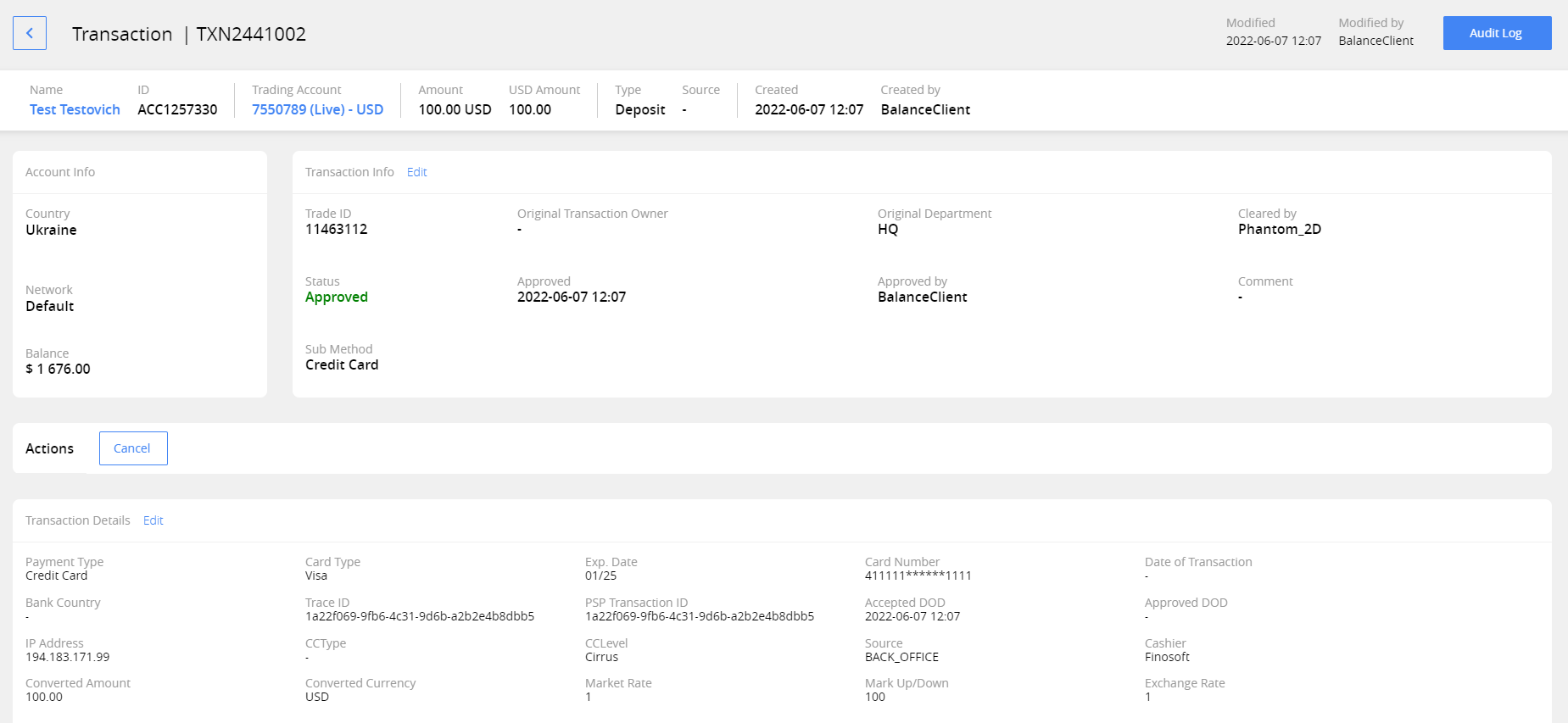
In the header of the transaction card, you can see the main information:
Customer’s name (link to customer card) and ID
Trading Account number (link to trading account card)
Transaction amount
Amount in USD
Transaction type
Source
Created
Created by
Account Info area contains:
Country
Network
Balance
Transaction Info area contains:
Trade Id
Original Transaction Owner (editable)
Original Department (editable)
Cleared by (editable)
Status
Approved date
Approved by
Comment (editable)
Sub Method (editable)
To change the values of editable fields, click the Edit link.
Status field in Transaction info area can have the following values:
- Pending – transaction is currently processed or waits for the action from authorized CRM user to process it manually.
- Approved – transaction is completed successfully. Transaction amount is added or deducted from customer’s trading account
- Declined – transaction is declined by the PSP, Cashier or manually, by authorized user. Used for Deposit transactions.
- Authorized – transaction amount has been reserved on customer’s side by PSP and is guaranteed to be charged from them. Transaction amount is added to customer’s trading account. Used for Deposit transactions.
- Failed – transaction is failed for reasons other than being declined (e.g. technical issues, etc.)
- Cancelled - transaction is cancelled manually by the authorized user.
Transaction status change is triggered by the info CRM gets from Payment service providers(PSP’s) automatically in most cases.
For some cases for the transactions need to be changed manually by the CRM users with corresponding permissions, e.g. in case of Wire Transfer transaction. In that case transaction from the customer will have Pending status, until user, usually agent working with that customer, needs to change it by hand using Approve or Decline buttons in Transaction card Actions area.
Actions are presented for specific transaction types in specific state. For example, when deposit is created without auto-approve, you can see the Approve, Decline, Cancel, and Edit amount actions.
Canceling transactions regardless of their status can be used in case of human error by authorized users.
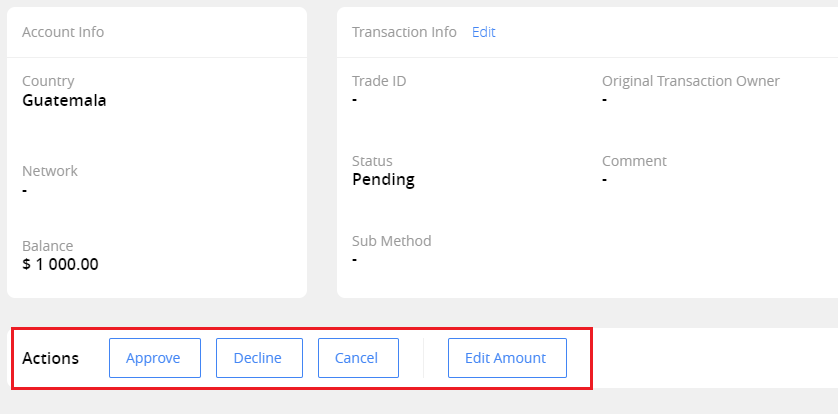
Permissions: Transactions > Approve/Decline/Cancel Deposit Wire Transfers, Cancel Transaction, Edit Wire Transfer Amount.
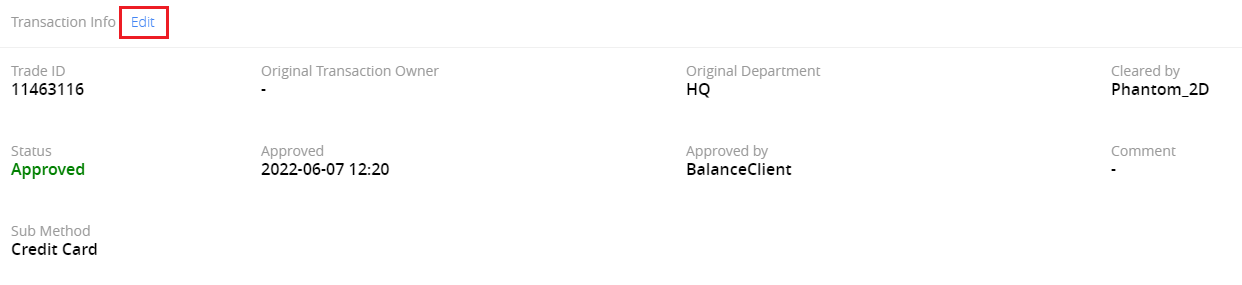
Permissions: To edit the information in transaction card, you must have the Edit transaction permission.
Transaction details area contains information that depends on the type of transaction. You can change it by clicking the Edit link.

Permissions: To see the transaction details, you must have the Show Credit Card Details permission. To edit the information in transaction card, you must have the Edit transaction permission.
Audit Log
The system tracks all changes of the transaction in the Audit Log.
To view it, open the transaction card and click Audit log.
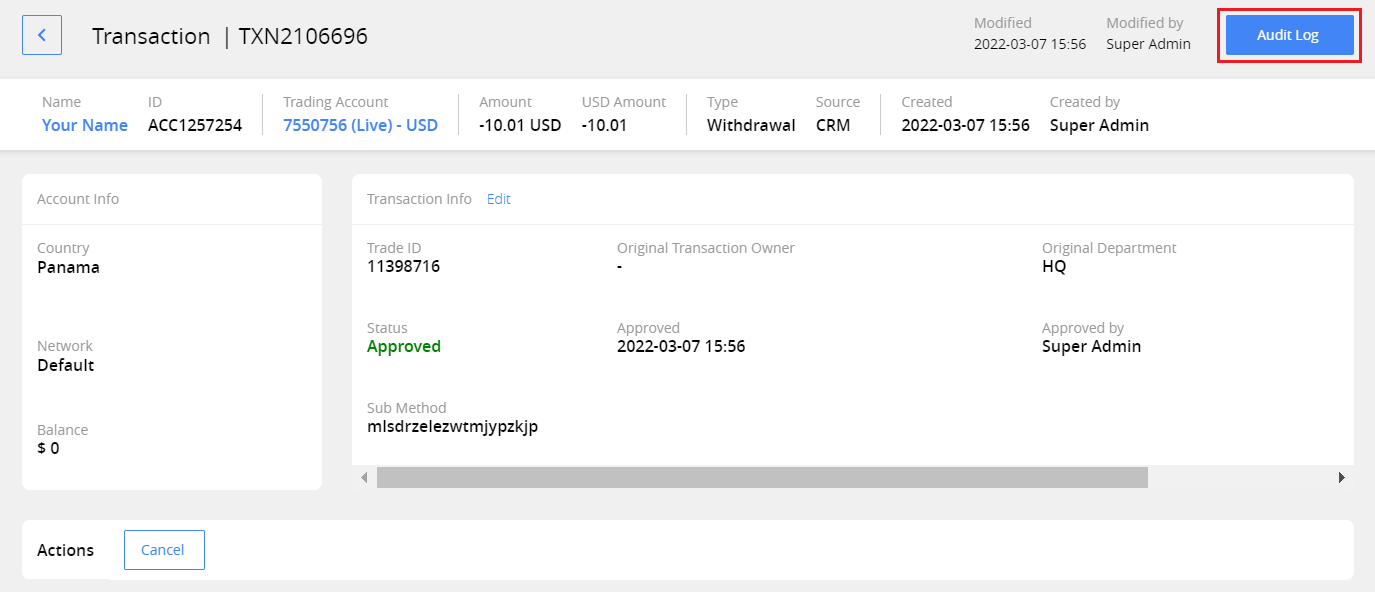
The audit log will be opened:
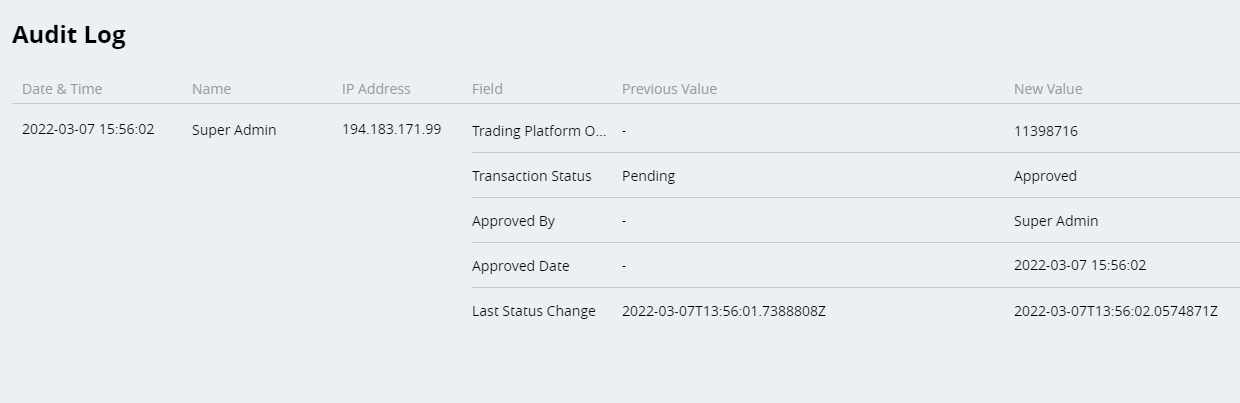
Here you can see any changes in the current transaction. The records in the log are displayed starting from the latest ones.
The information is divided into columns:
Date and time of change (user local time is used)
Name of the user who performed the change, and their IP address
Field in which the changes were performed
Previous and new value
Create a transaction
All the transactions type, except bonuses, can be created manually from Customer card.
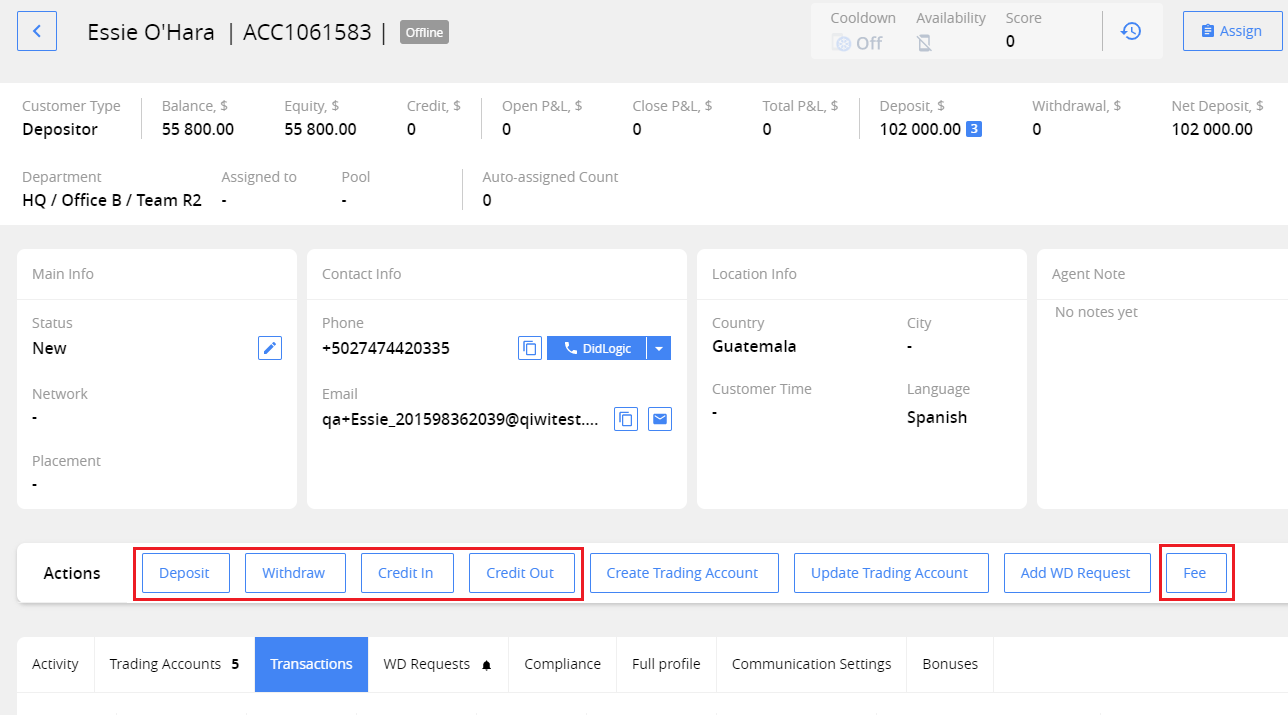
Note. The actual credit card or wire transfer charging is not performing in CRM.
caCreate a Deposit transaction
Let’s look at an example of Deposit creation.
-
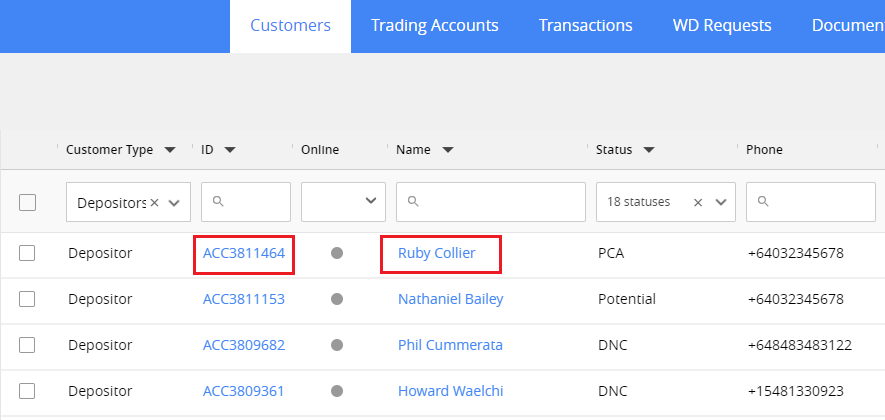
In Customers section click the customer’s Name or ID link.
-
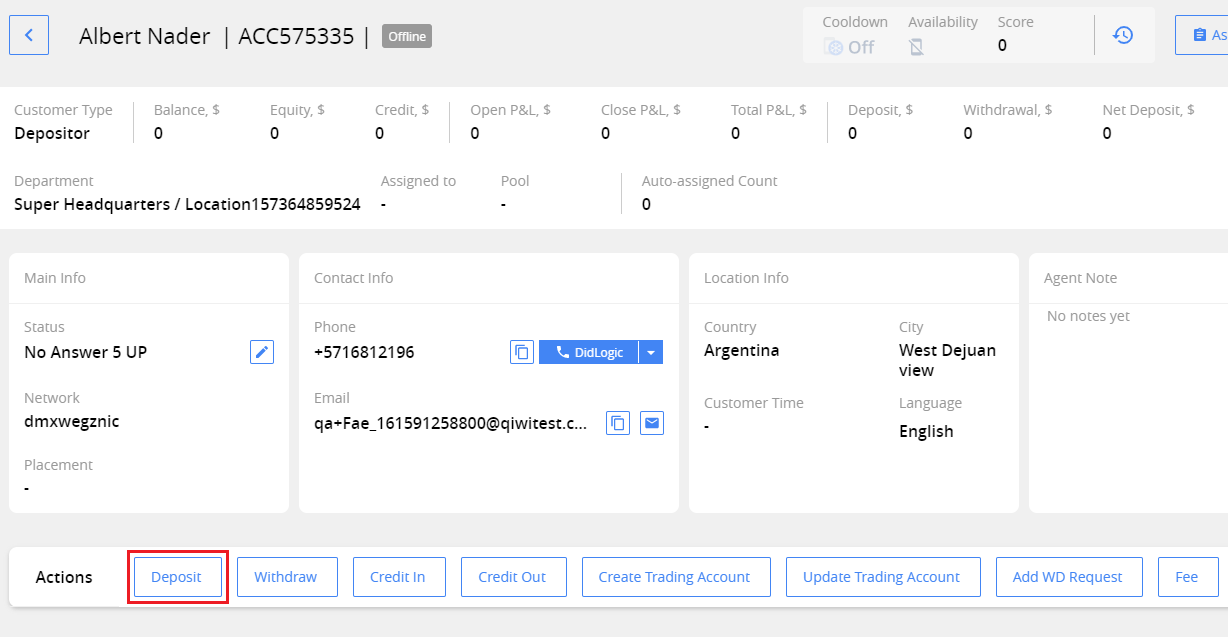
In the card opened, click Deposit button.
-
Fill in the fields:
Account info:
-
Trading Account – the account mustn’t be archived (required field)
-
Deposit Amount (required field)
-
Cleared by – the method or bank that processed the transaction, e.g. SafeCharge, WireCard
-
Comment
Payment info:
-
Payment type – Credit Card or Wire Transfer (required field)
-
Payment type fields – depending on selected payment type
Auto Approve – leave the checkbox set unless additional verification and deposit approval are required.
Create Withdrawal Request
Create Credit in out
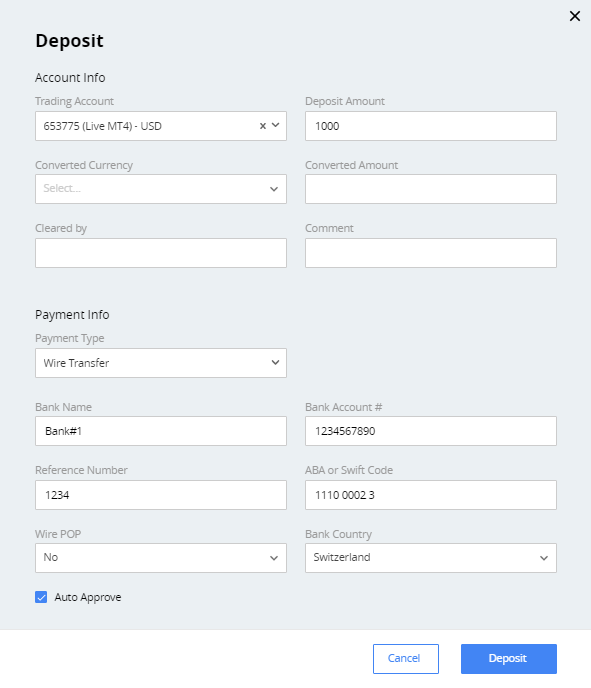
- Click Deposit.
As a result:
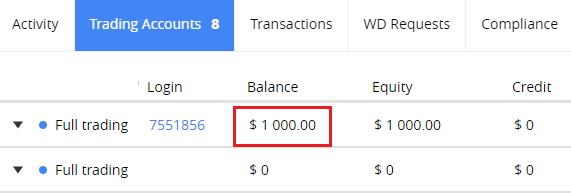
- The balance on Trading Account will be updated for specified amount.
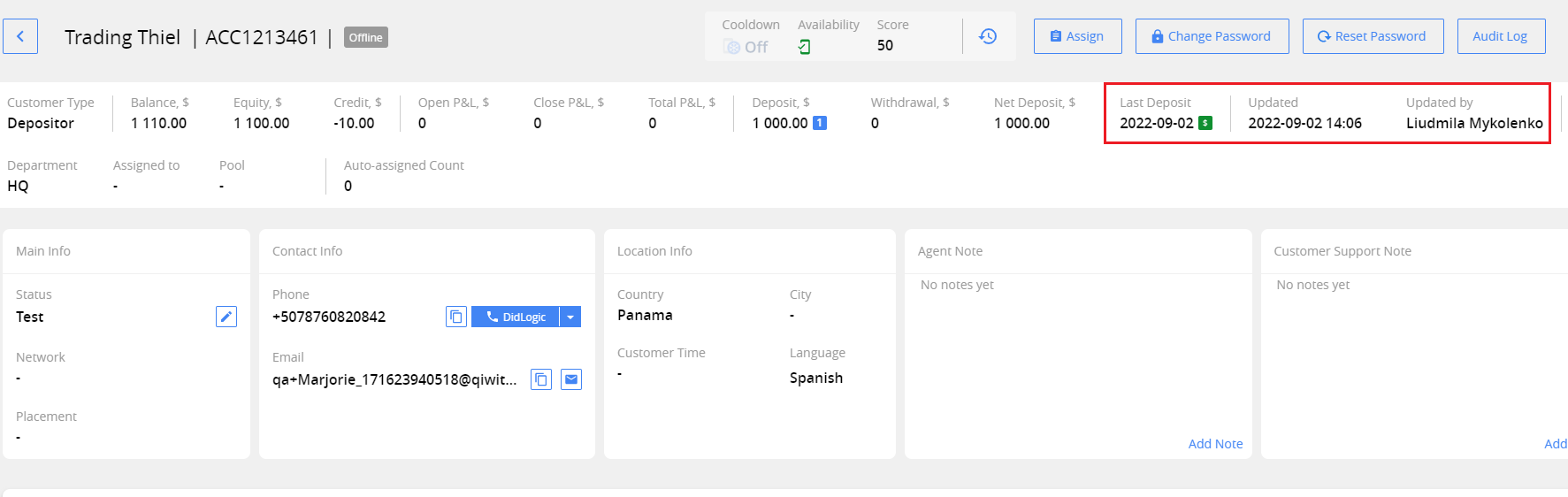
The fields on customer page will be updated:
- Last Deposit date
- Updated by
- Updated
Transaction record will be created. You can find it in the Transactions main grid or in the customer card.

Export transactions to Excel file
You can export transaction list to a CSV file. To do this, click the Export button in the main grid.
Permissions: Transactions > Export transactions.
After confirming, the CSV file will be downloaded to your computer:
The file contains the list of transactions from all pages of the grid with applied search filters.
The list of columns in the file corresponds to the settings of the main grid.