Anti-Fraud Management
Anti-Fraud Management (AFM) module represents the reporting of first time deposit (FTD) traffic to affiliates.
The logic can be set up in different system sections:
In the AFM section
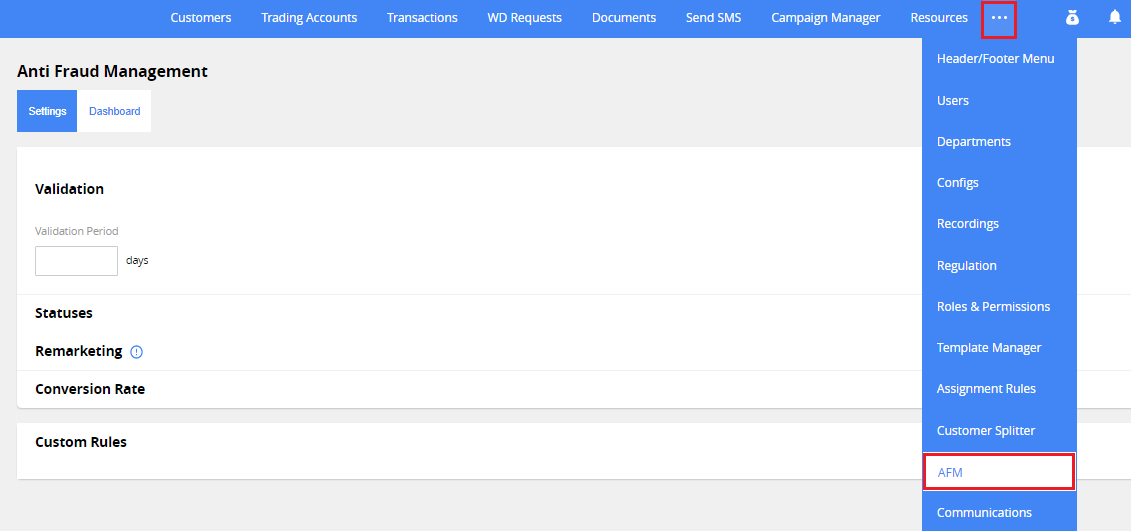
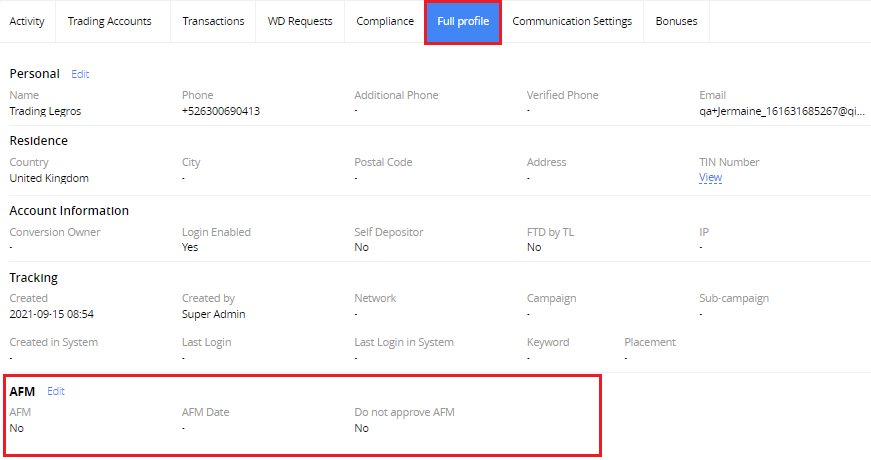
In the Customer card > Full Profile tab
In the Configs section > AFM:Config:Enabled feature
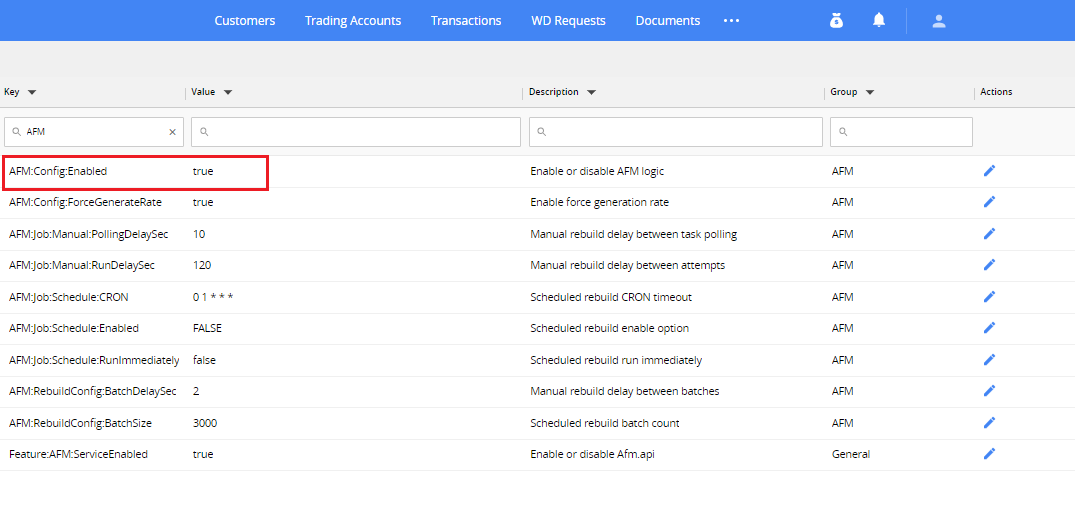
When AFM:Config:Enabled feature toggle is ON and all switchers in AFM section are OFF, all FTDs will NOT be reported to affiliate.
When AFM:Config:Enabled feature toggle is OFF, all FTDs according to settings on Full Profile tab will be reported to affiliate.
AFM Settings
The AFM section consists of two tabs:
- Settings
- Dashboard
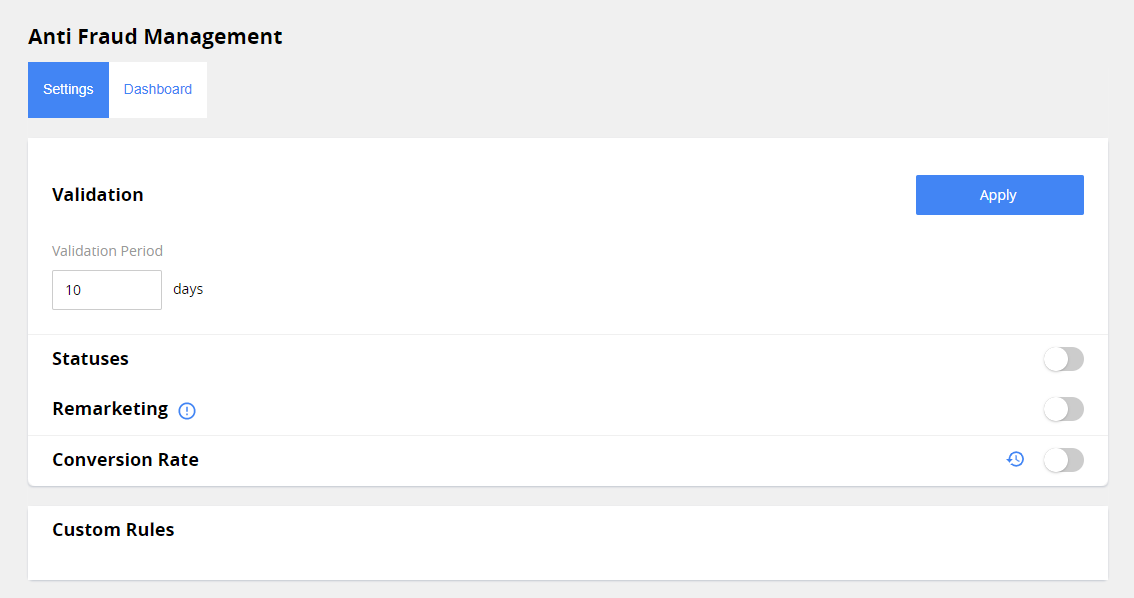
On the Settings tab you can set up the AFM logic:
- Validation
- Statuses
- Remarketing
- Conversion Rate
- Custom Rules
Permissions. AFM > Access to AFM settings.
Validation
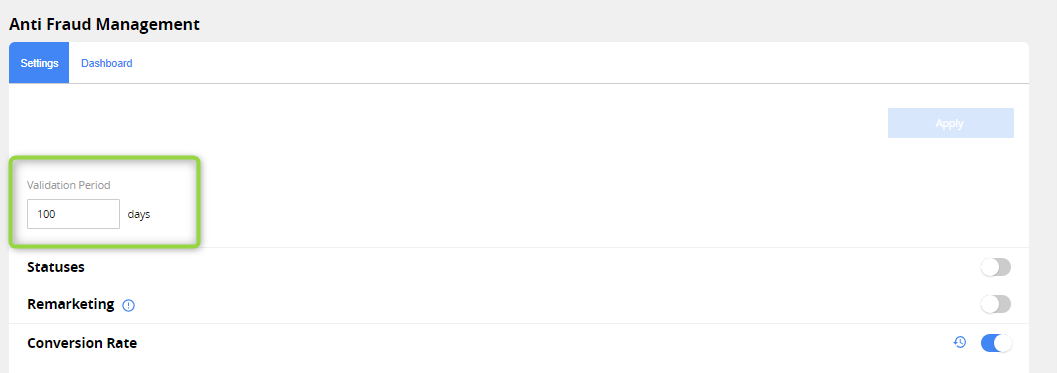
Validation period is a common setting for all AFM settings:
- Statuses
- Remarketing
- Conversion Rates
If FTD is done later than the number of validation days since created date, the FTD is never approved.
If no value in the box, it is considered as no validation limit.
Validation period must be between 1 and 100;
Validation period can be marked as ignored in the Custom Rules area;
Also, the custom validation period can be set up in the Custom Rules area.
Statuses
Settings for Statuses in AFM are not required. Statuses are enabled by toggle. When statuses toggle is OFF, statuses shouldn't be included to remarketing logic.
Remarketing
The logic depends on Statuses switcher.
If Statuses toggle is OFF:
When Remarketing is ON, then AFM for the customer set as TRUE under following conditions:
Customer has FTD
Customer doesn't have Remarketing OR has Remarketing but its date is before specified Validation Period.
Conversion rate
Conversion Rates can be turned ON by toggle (OFF by default)
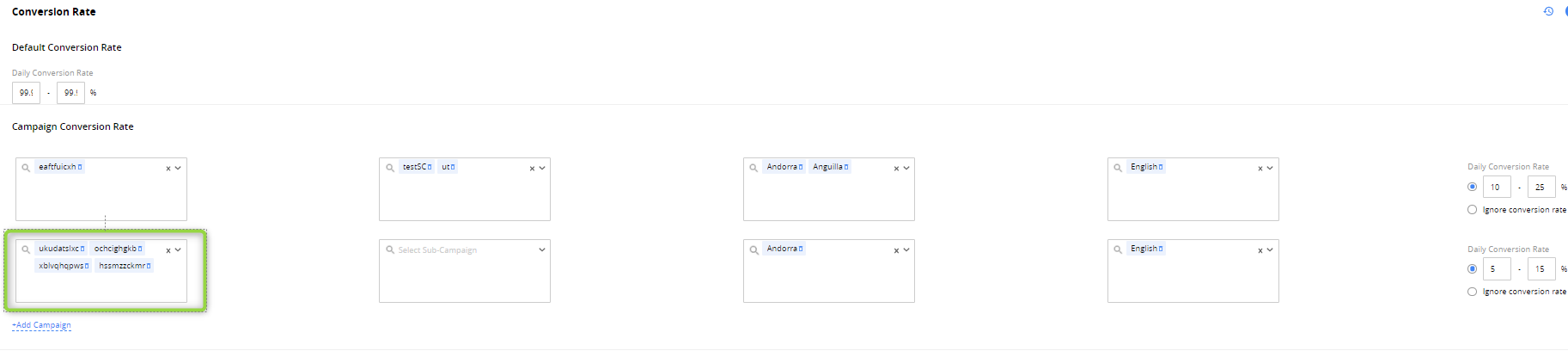
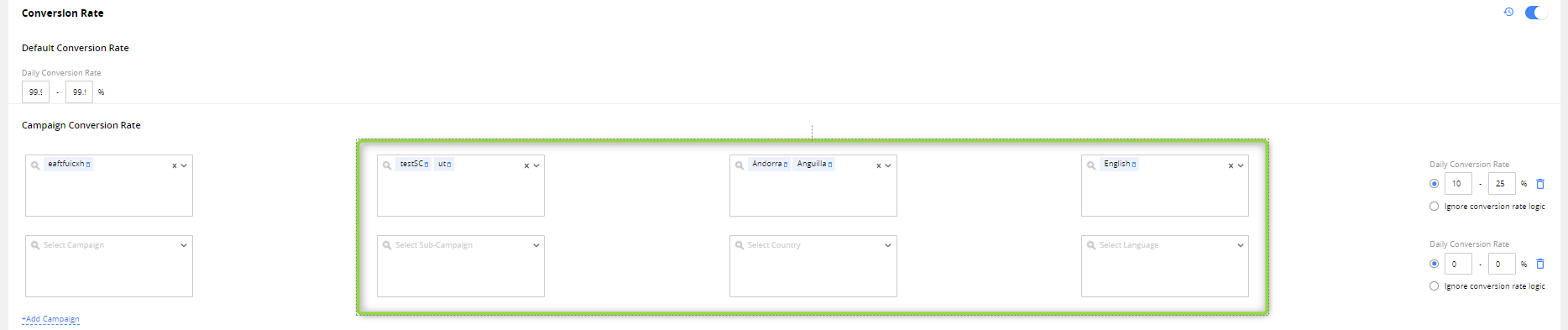
You can select multiple Campaigns, Sub-Campaigns, Countries & Languages.
Combination Campaign&Country&Sub-Campaign&Language cannot be repeated in settings. System will not allow to save duplicate.
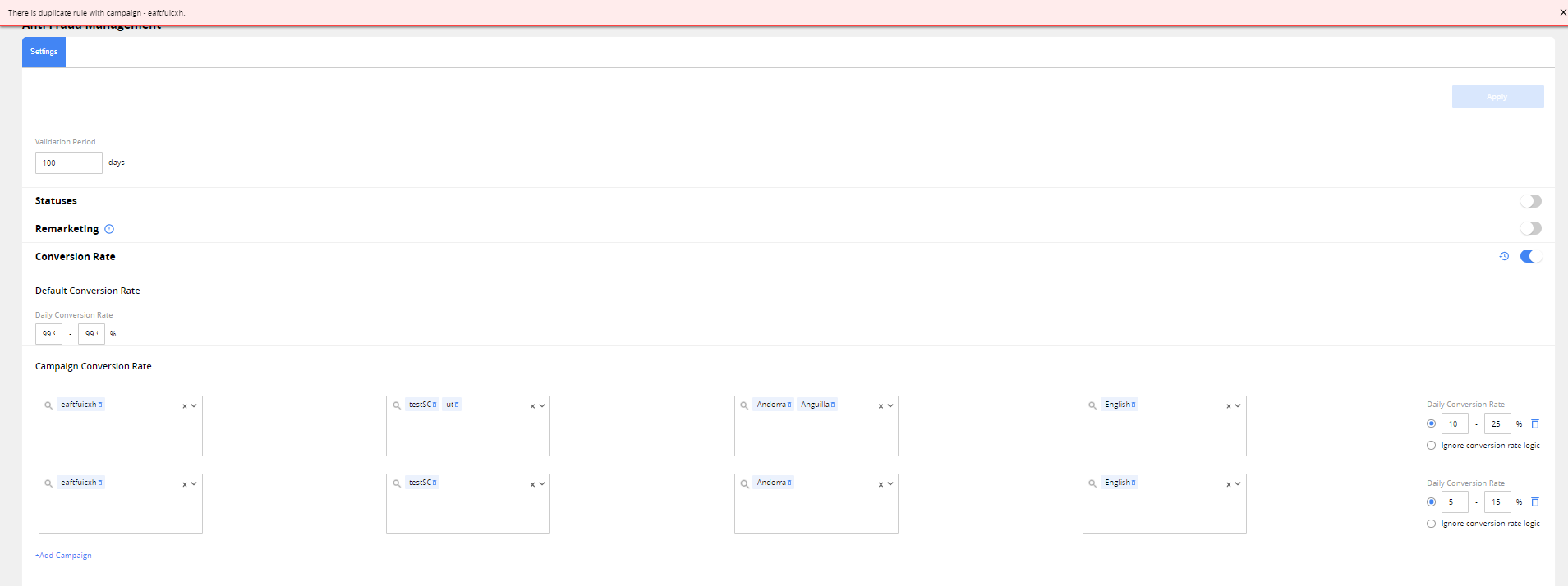
If more than one campaign is selected, campaigns should be listed through comma.
Country:
- is optional field
-
country can be selected in the dropdown list of all countries
-
type: multiselect

-
Sub-Campaign:
- is optional field
-
type: multiselect
-
list of sub-campaigns contains only sub-campaigns from selected Campaigns
-
if the selection of campaign is canceled, related sub-campaigns will be removed from the dropdown list and from selected options.

-
Language:
- is optional field
-
type: multiselect
-
all the languages are presented in the dropdown list

-
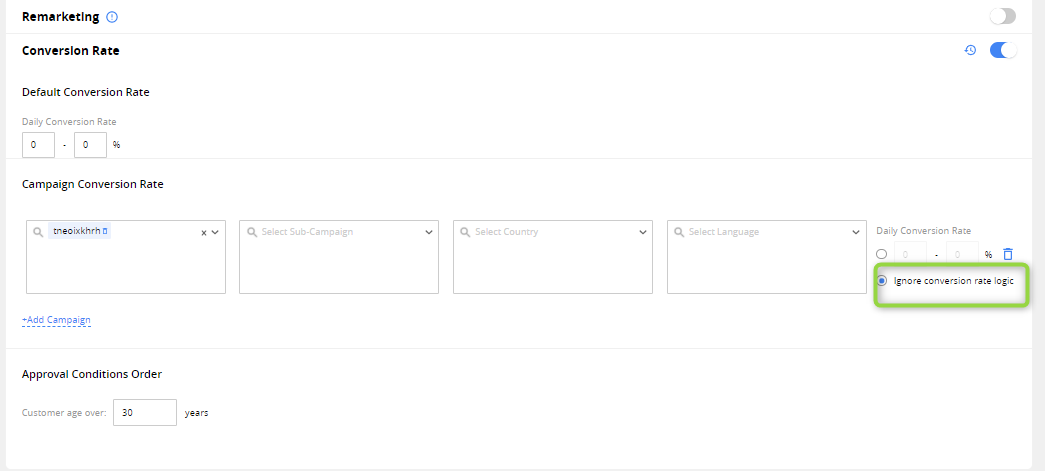
Radio button setups daily rate
-
Radio button ignores this campaign for Conversion Rates -> conversion rates logic will not be applied for this campaign, FTDs will be approved only by statuses & remarketing logic
-
Conversion Rates are set up according to criteria:
- Default – cannot be removed, required when Conversion Rates turned ON
- Campaign – values are added by clicking 'Add Campaign' inside the block
All Conversion Rates have Daily settings as percent threshold:
- must be specified
- individual field value cannot be more than 100
- the value from the left should be less than from the right
- both left and right values are required
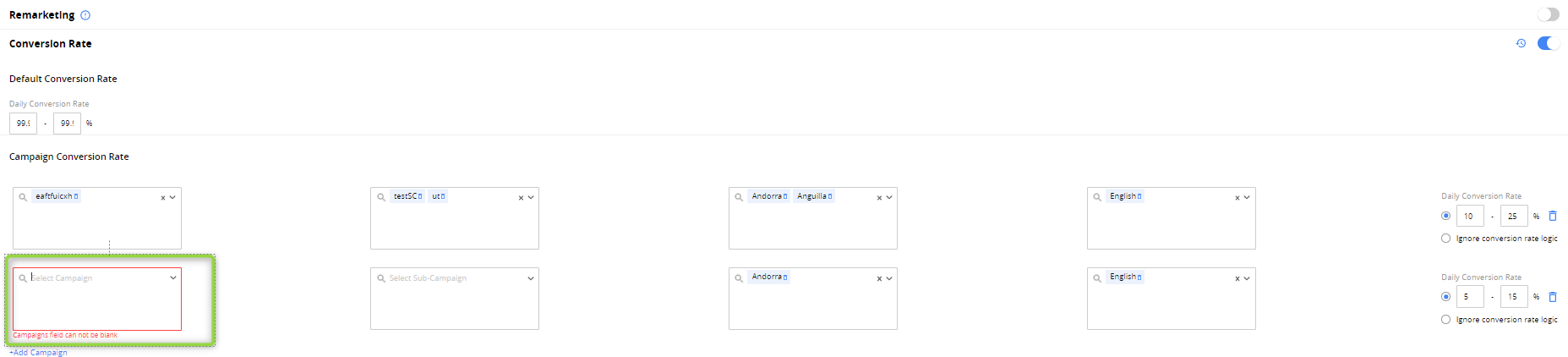
In Campaign Conversion Rates at least one Campaign must be selected from the dropdown list.
If Conversion Rates toggle is ON, the following % is defined on a daily basis:
- default,
- campaign (if at least one campaign added).
Campaigns mentioned in Campaigns rates will receive Campaign rate, all the other campaigns will receive Default rate.
FTDs from customers without campaign will be checked with default rate.
Daily percentage is calculated by scheduler.
Percentage is generated each day as random value from min to max specified in settings.
If Country, Campaign, Language or Sub-Campaign were updated for Customer – new % from conversion rates settings will be applied after the next daily run of % generation, counts for Leads & FTDs will be started from scratch.
If a new rule is added for country, sub-campaign or language, default rate will start calculation from scratch.
For each campaign with the default rate, different daily % will be set randomly.
When considering FTD for approval if conversion rate is not exceeded – only FTD for the current calendar month can be approved.
Default % for a day is not unique for all default campaigns, it is vary in setup measures.
For the New Lead event, when select FTD or approval from the past, apply the following logic:
- select only FTDs from current calendar month;
- select only FTDs for customers which don't have open WD requests or approved WD transactions;
- sort possible FTDs according to customers criteria and approve the highest according to priority (from top to bottom):
- KYC approved
- Both POI/POR Approved (groups for POI & POR approved)
- At least 1 trade created
- both EV approved (POI/POR) (at least 1 doc EV POI & at least 1 doc EV POR approved)
- Questionnaire Completed & Customer Category = Retail or Professional
- Created Date (without time; latest date - from the top)
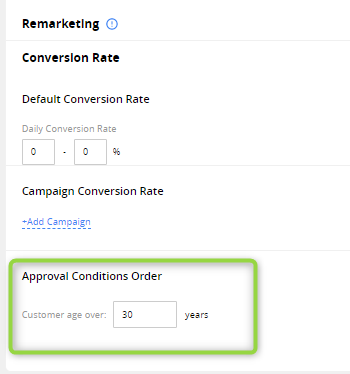
- DOB >= %X% (Default over 30)
- all other FTDs
Approval Conditions Order
-
Is used to configurate DOB. The default value: 30.
Conversion Rates History
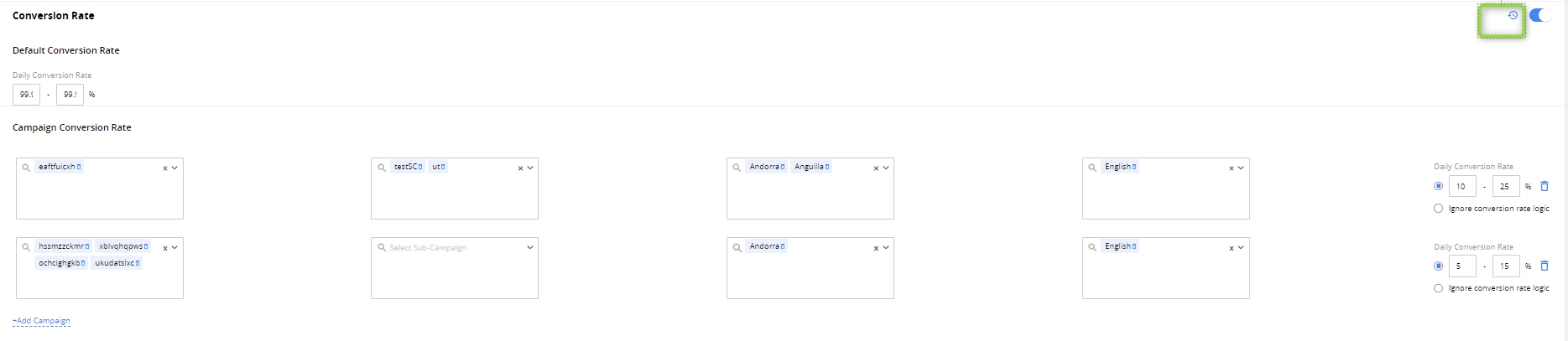
Conversion Rates History presents all daily generated rates for all campaigns.
History is available by clicking the button near toggle on Conversion Rate settings.
List of the generated values for Conversion Rates contains columns:
Creation Date
Type – default, campaign, country
Campaign
Country
Sub-campaign
Language
Daily Rate – %
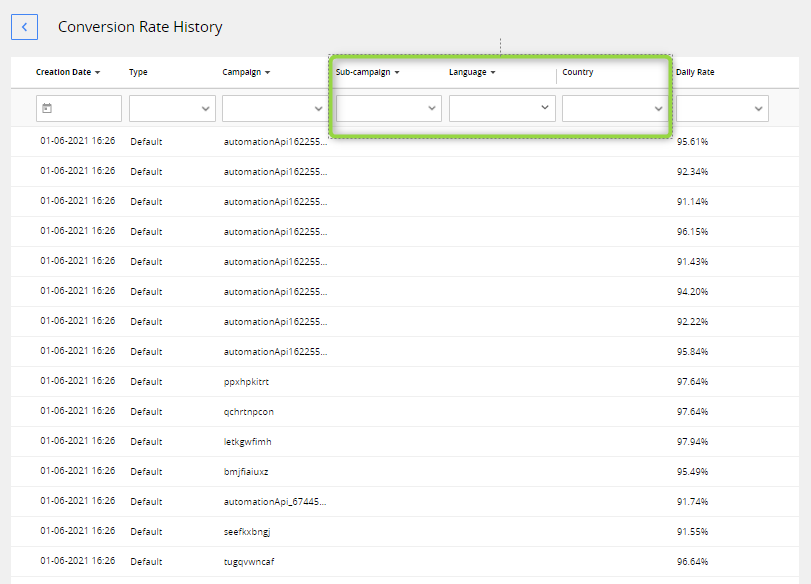
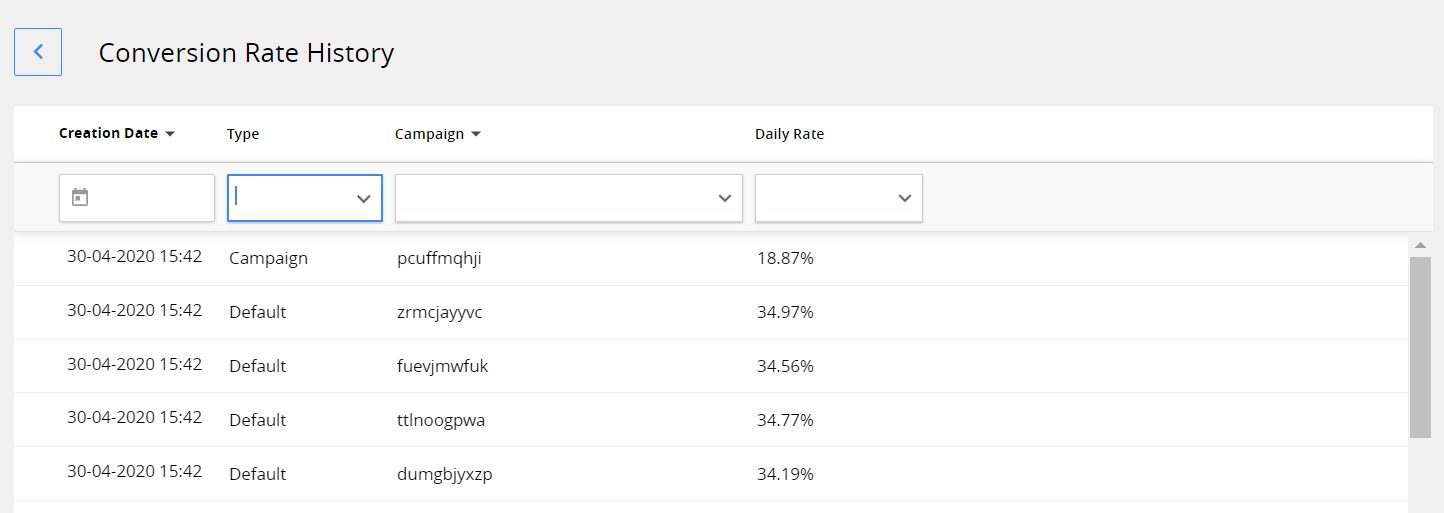
By default, rates are sorted by date (latest on top). You can change sorting by clicking the column headers.
Filtering is available in column headers:
Creation Date: calendar
Type: dropdown with multiselect
Campaign: dropdown with multiselect
Daily Rate: amount filter
Country: dropdown with multiselect
Sub-campaign: dropdown with multiselect
Language: dropdown with multiselect
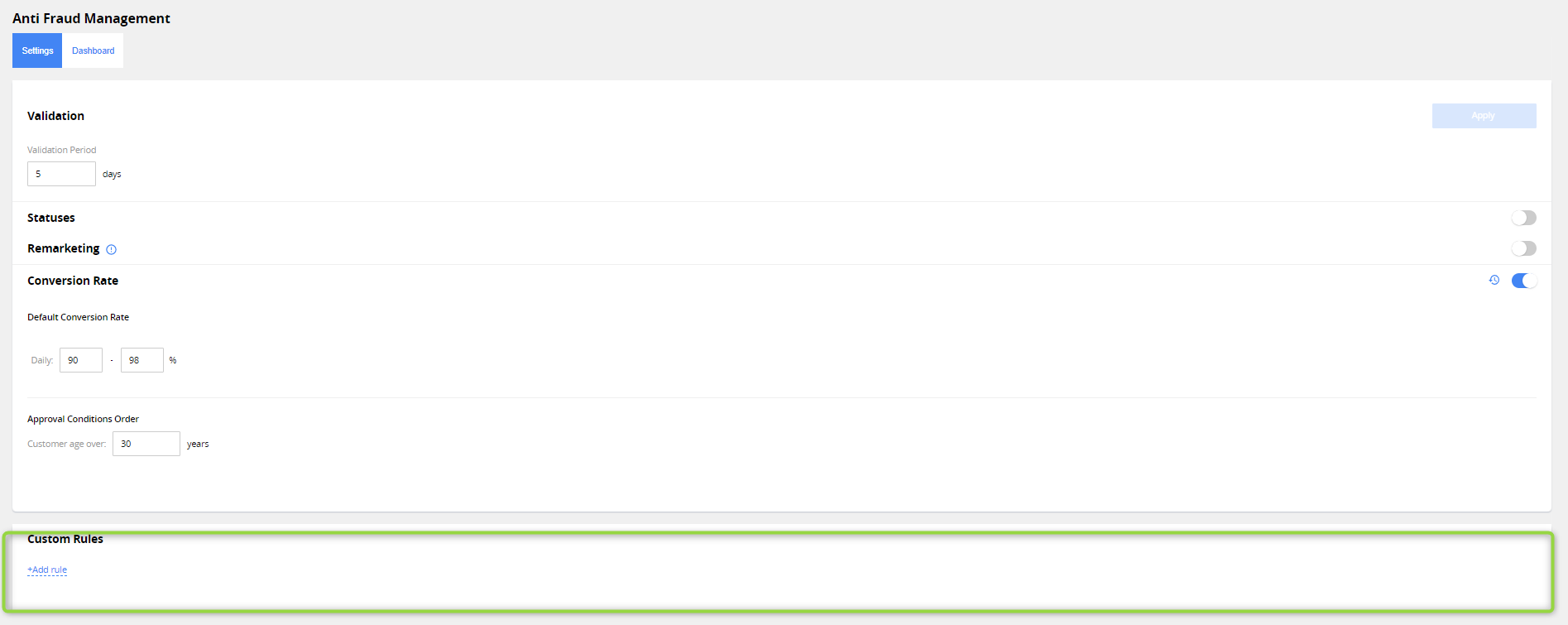
Custom Rules
The Custom Rules area contains rules for specific campaign, sub-campaign, country, and language that should be different from the other settings.
Use the Custom rates checkbox to set up the daily conversion rates per campaign/sub-campaign/country/language.
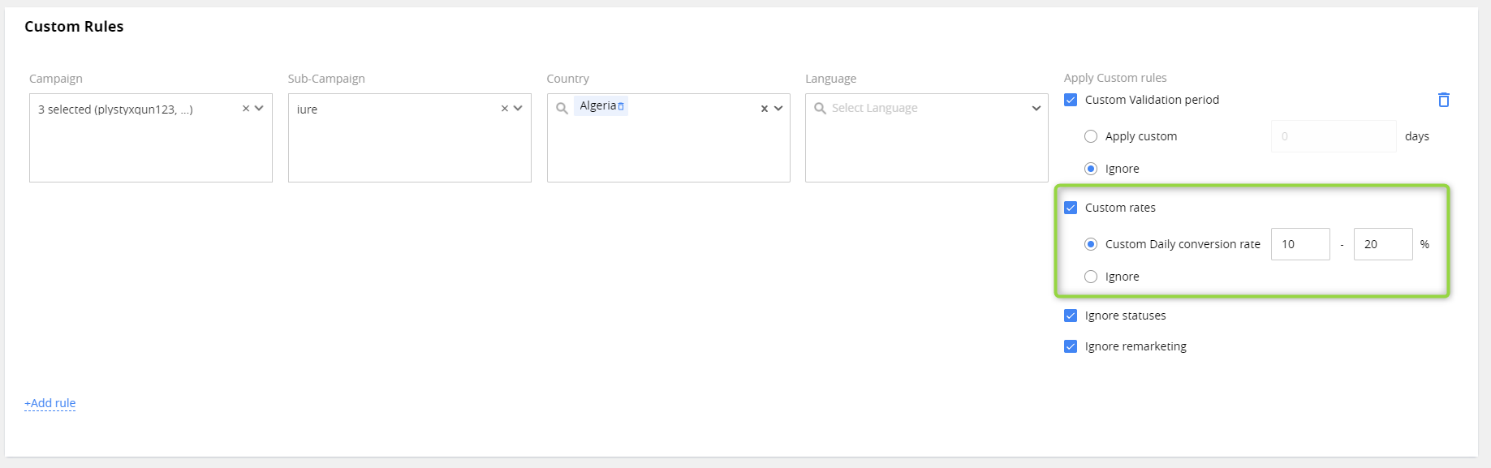
You can set up a Custom validation period in Custom Rules.
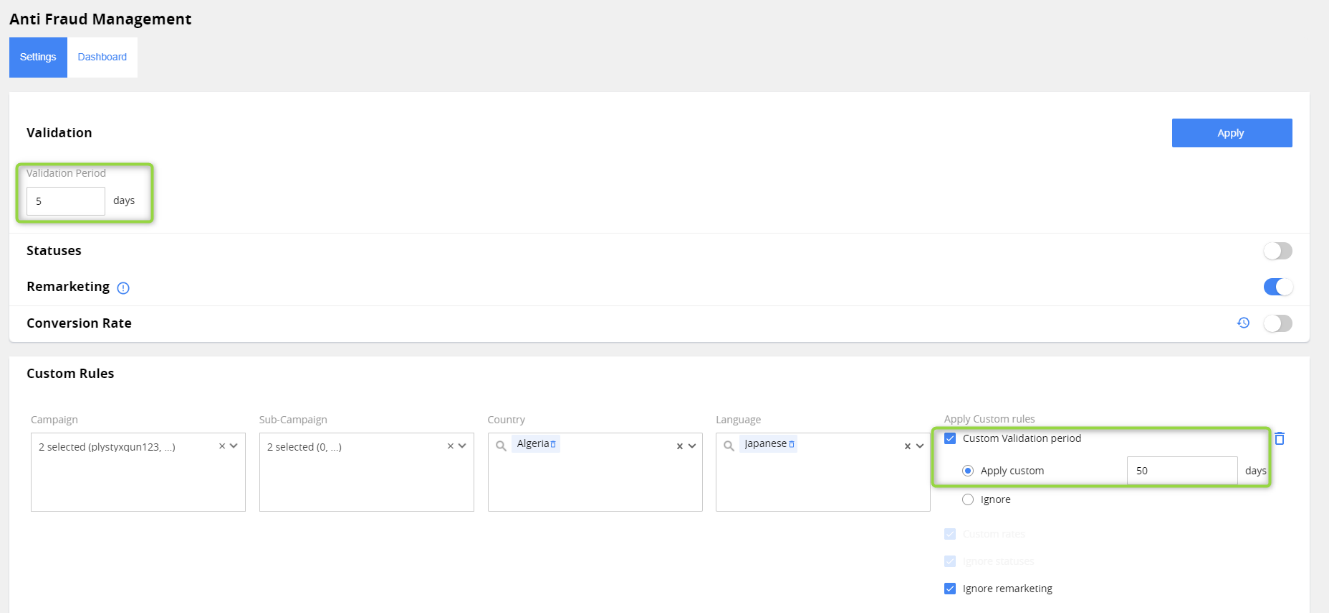
If customer validation period is specified for rule – it is used for remarketing, statuses & conversion rates for specific campaign/sub-campaign/country/language instead of default validation period;
If validation period is specified for rule -> default validation should be used;
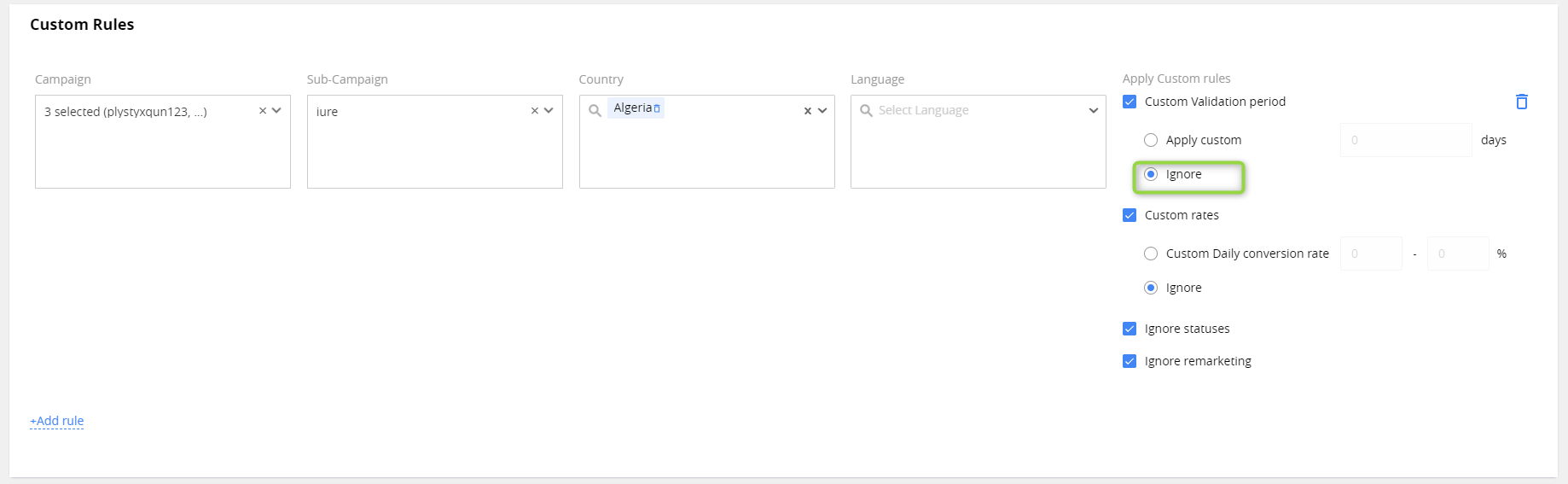
If validation period marked as ignored -> there is no time limits for approving FTDs (except calendar month hardcoded rule for conversion rates.)
Ignore option gives the ability to ignore validation period for specific rules.
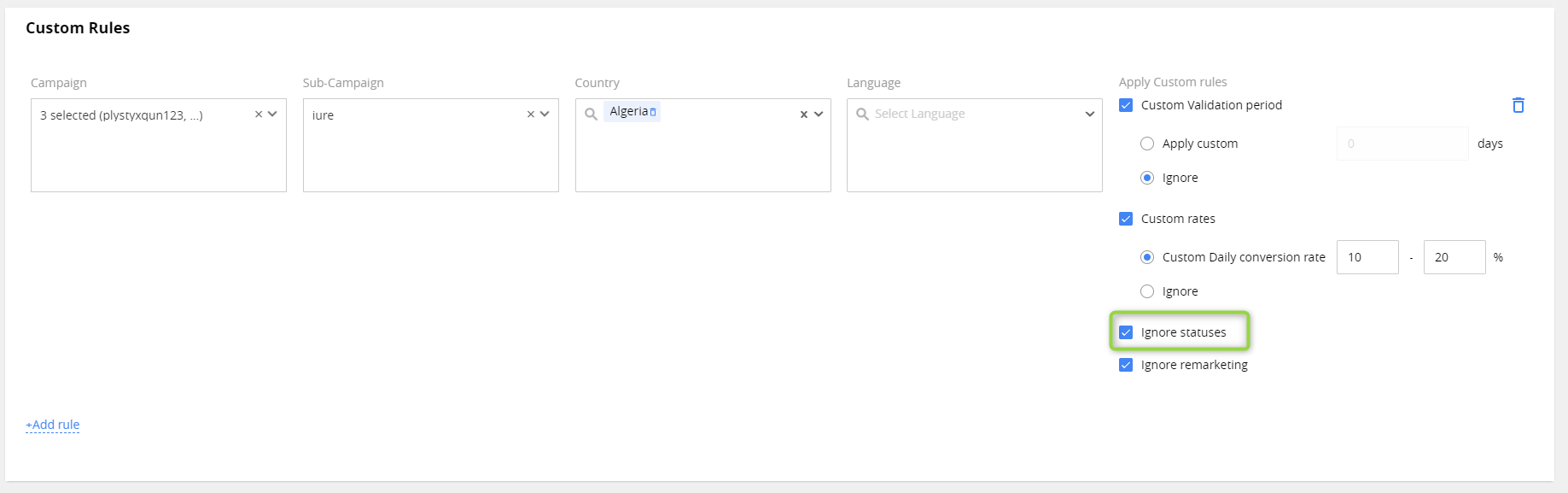
Ignore statuses – if it’s ON, logic for statuses is skipped for all AFM events (FTD, new lead added, customer status changed.)
Ignore remarketing – when checkbox is ON, logic for remarketing skipped for all AFM events (FTD, new lead added, customer status changed.)
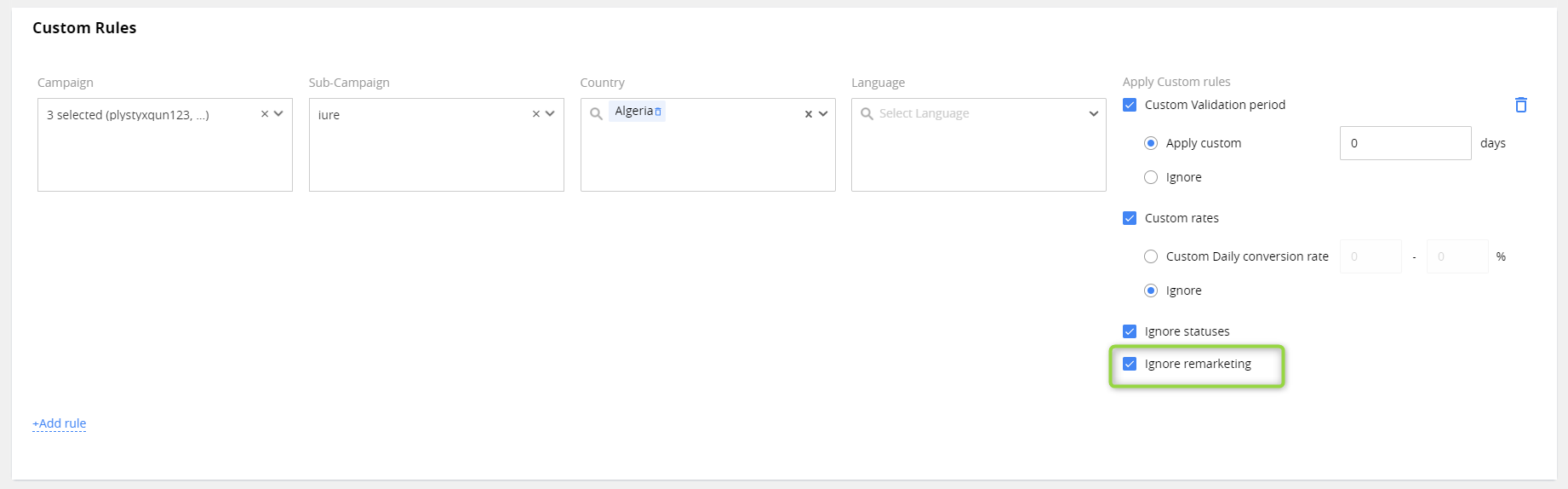
When all settings (remarketing, statuses, rates, and custom validation period) are ignored for the rule -> all customer’s FTDs according to the rule will be approved.

When only remarketing, statuses, and rates are ignored for rule, but validation period is specified -> all FTDs within validation period will be approved (FTD done in period from created date + validation period.)
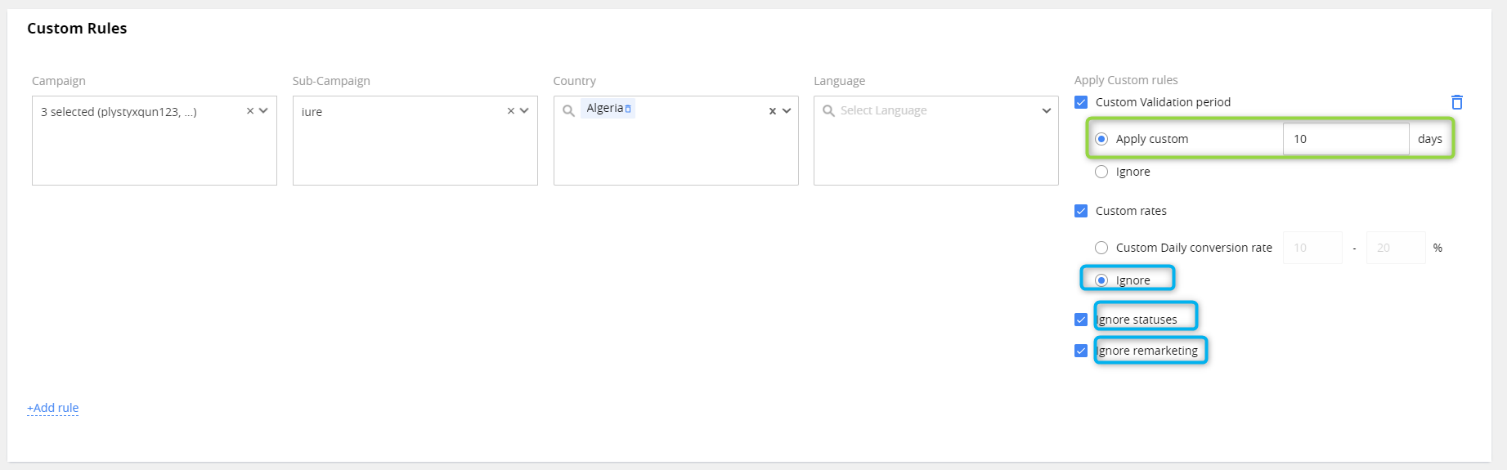
Toggles combination cases:
All system toggles are off (remarketing, statuses, rates) - > all system rules are ignored, all custom rules are ignored, validation period is ignored (checkbox near validation period in custom rules is disabled;)
If one of the system toggles is off (conversion rate or statuses, or remarketing) -> conversion rates check for system and for custom rule will be ignored, and this setting in custom rules will be disabled.
How it works
The conversion rates logic works together with logic for Statuses and Remarketing field.
Initiation of calculation
Applying Rates enabled when toggle in AFM settings is ON.
If rates in settings were updated, new rates are applied immediately.
Note. It is available under feature toggle AFM:Config:ForceGenerateRate. The toggle is off by default.
Applying Rates started from date when:
- rates were setup and enabled,
- new campaign added to the settings.
The AFM logic is triggered by such events:
FTD, a customer made confirmed money transfer for the first time.
New Lead was added to CRM for a Campaign.
Customer status has changed.
FTD event
After being triggered by the FTD event, the system goes through different steps.
Step 1. Check AFM:Config:Enabled feature toggle.
If toggle is OFF -> all FTDs will be marked as true for Affiliate.
If toggle is ON -> go to the next step.
Step 2. Check if at least one toggle is ON in AFM settings (statuses, remarketing, etc.)
If at least one toggle is ON -> go to the next step.
When all toggles are OFF -> do not mark as approved FTD for affiliate, finish process.
Step 3. Check Conversion Rates toggle.
If toggle is ON -> go to the next step.
If toggle is OFF -> skip the next step and go to step 5.
Step 4. Check daily Conversion Rates logic.
System checks daily Campaign&Country&Sub-campaign&Language threshold and compares it with Daily Rate defined by scheduler.
Daily approved FTDs / Daily Leads < Daily Campaign&Country&Sub-campaign&Language Rate.
If rate is exceeded, FTD is not marked as approved for affiliate -> finish flow for this FTD.
Otherwise – go to the next step.
Note. When consider FTD for approval if conversion rate is not exceeded – only FTD for current calendar month can be approved.
Only FTDs which were done during days setup in validation period can be approved. (Created Date + Validation period).
If FTD was done later than <validation days> since created date – this FTD is not approved.
Step 5. Check Statuses toggle.
If toggle is ON -> go to the next step.
If toggle is OFF -> skip the next step and go to the step 6 (Remarketing toggle check).
Step 6. Check AFM Statuses Criteria.
If status is one from Approved – go to the next step.
In other case – FTD is marked as not approved and the flow for this FTD is finished.
If FTD is done during validation period & current status = Approved & status was NEVER Fraud -> Approve FTD.
If FTD done after validation period OR current status is not Approved OR status was Fraud (any time, not only validation period) -> do not approve FTD.
Step 7. Check Remarketing toggle.
If toggle is ON -> go to the next step.
If toggle is OFF -> go to the step 9.
Step 8. Check Remarketing Criteria for taken deposit.
When Remarketing is ON then AFM set as true if customer doesn't have Remarketing OR has Remarketing but its date is before specified Validation Period (e.g. if Period=5, Created=01.01, Today=06.01 then only 01-05.01 are acceptable.)
Validation Period = Today - Created date // time to validate if affiliate provided a worthy customer.
If Remarketing Criteria is met – system goes to the next step, in other case – FTD is not marked as approved.
Step 9. System marked FTD as approved (AFM = true) and fills in the AFM date with the current date.
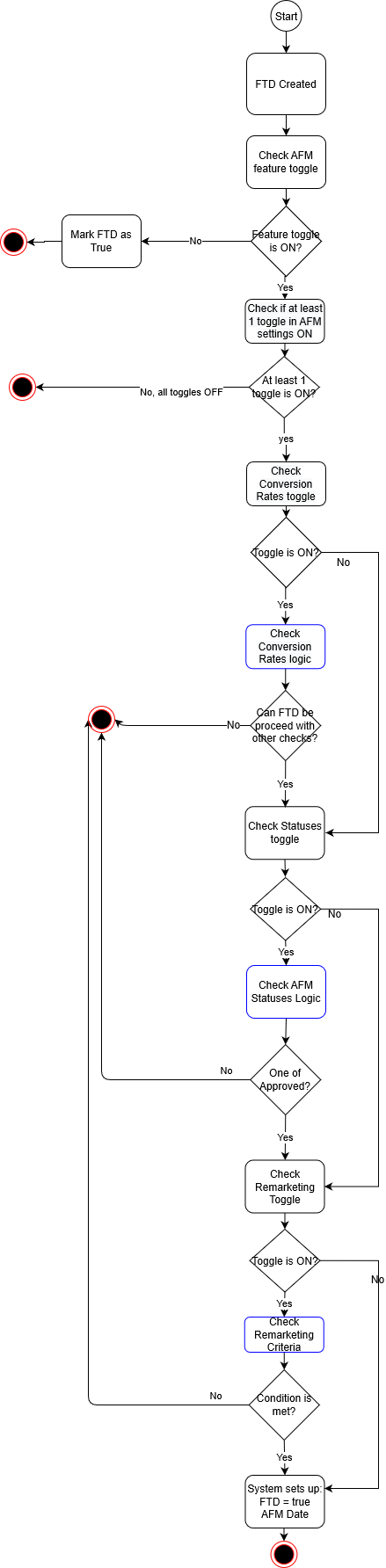
New Lead event
After being triggered by the new lead event, the system goes through different steps.
Step 1. Check AFM:Config:Enabled feature toggle.
If toggle OFF -> finish the process.
If toggle ON -> go to the next step.
Step 2. Check Conversion Rates toggle.
If toggle ON -> go to the next step.
If toggle OFF -> finish the process, no need to report FTDs to affiliate.
Step 3. Check Conversion Rates logic.
3.1. System checks daily campaign threshold and compares it with Daily Rate defined by scheduler.
Daily approved FTDs / Daily Leads < Daily Campaign&Country&Sub-campaign&Language Rate.
If rate is exceeded, this FTD is not marked as approved for affiliate (finish flow for this FTD).
Otherwise – check available deposits for this campaign without FTD.
3.2. System checks if there are any deposits for this campaign without FTD=true. The latest deposit is taken (or any random from the past) and system goes to the next step. If no such deposits -> the process is finished.
Step 4. Check Statuses toggle.
If toggle is ON -> go to the next step.
If toggle is OFF -> skip the next step and go to the step 6 (remarketing toggle check).
Step 5. Check AFM Statuses Criteria.
If status is one from Approved – system goes to the next step.
In other case – returns to step 3.
If FTD is done during validation period & status changed to Approved & status was NEVER Fraud -> Approve FTD.
If FTD done after validation period OR status was Fraud (anytime, not only in validation period) -> do not approve FTD.
Step 6. Check Remarketing toggle.
If toggle is ON -> go to the next step.
If toggle is OFF -> go to the step 8.
Step 7. Check Remarketing Criteria for taken deposit.
When Remarketing is ON then AFM is set as true if customer doesn't have Remarketing OR has Remarketing but its date is before specified Validation Period (e.g. if Period=5, Created=01.01, Today=06.01 then only 01-05.01 are acceptable).
Validation Period = Today - Created date //time to validate if affiliate provided a worthy customer.
If Remarketing Criteria is met – system goes to the next step, in other case – returns to step 3.
Step 8. Check withdrawal transactions and requests. Do not approve FTD's on customers which have:
Approved Withdrawal transaction or open Withdrawal request (= any status, except Completed, Partially Completed, Rejected, Cancelled by Clients, Rejected Follow-up.)
Step 9. System sets up FTD approved (AFM = true) and fills in the AFM date with the current date.
Note. Operation about FTD approval may take some time due to services cross-dependency.
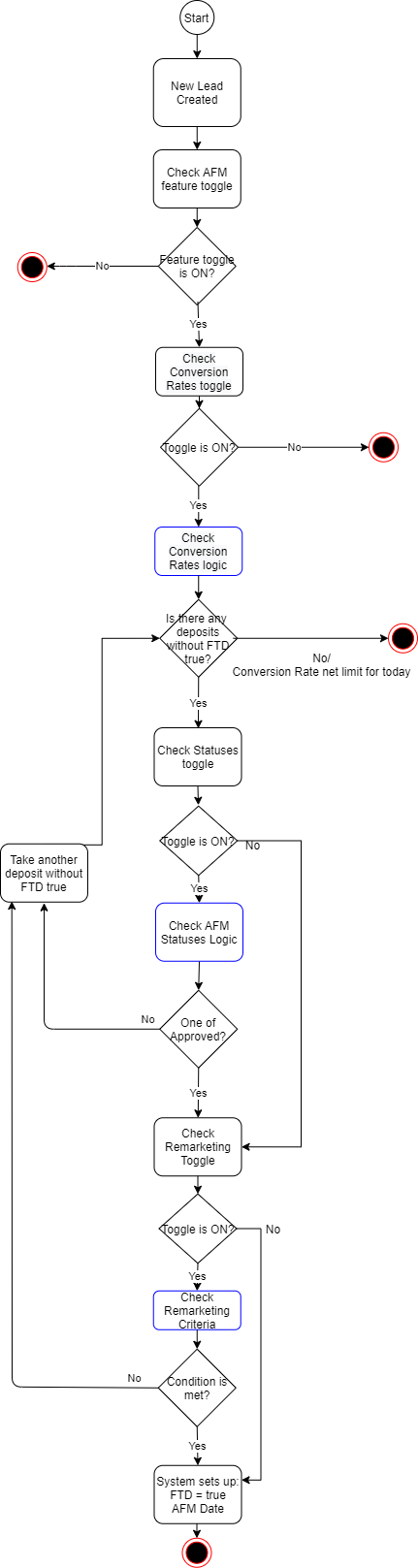
Customer Status Changed event
After being triggered by the FTD event, the system goes through different steps.
Step 1. Check AFM:Config:Enabled feature toggle.
If toggle is OFF -> finish process.
If toggle is ON -> go to the next step.
Step 2. Check the Statuses toggle.
If toggle is ON -> go to the next step.
If toggle is OFF -> do not mark FTD as true for Affiliate.
Step 3. Check the new customer status after changes.
If it’s fraud or neutral -> do not mark FTD as true for Affiliate.
If it’s Approved -> go to the next step.
Step 4. Check FTD for the customer.
If customer has FTD and it was approved manually -> finish the process.
If customer doesn't have FTD or FTD wasn't approved -> go to the next step.
Step 5. Check Conversion Rates toggle.
If toggle is ON -> go to the next step.
If toggle is OFF -> skip the next step and go to step 7.
Step 6. Check Conversion Rates Logic.
System checks daily campaign threshold and compares it with Daily Rate defined by scheduler.
Daily approved FTDs / Daily Leads < Daily Campaign&Country&Sub-campaign&Language Rate.
If rate is exceeded, this FTD is not marked as approved for affiliate (finish flow for this FTD).
Otherwise – go to the next step.
Step 7. Check AFM Statuses Criteria, Creation Date Condition in case of previous status was one from Fraud.
If the conditions not met -> do not mark FTD as approved, finish process.
If previous status is not Fraud -> go to the next step.
If FTD is done during validation period & status changed to Approved & status was NEVER Fraud -> Approve FTD.
If FTD is done after validation period OR status changed to not Approved OR status was Fraud (any time, not only validation period) -> do not approve FTD.
Step 8. Check Remarketing toggle.
If toggle is ON -> go to the next step.
If toggle is OFF -> go to step 10.
Step 9. System checks Remarketing Criteria for taken deposit.
When Remarketing is ON then AFM is set as true if customer doesn't have Remarketing OR has Remarketing but its date is before specified Validation Period (e.g. if Period=5, Created=01.01, Today=06.01 then only 01-05.01 are acceptable).
Validation Period = Today - Created date //time to validate if affiliate provided a worthy customer.
If Remarketing Criteria is met – go to the next step, in other case – do not mark FTD as approved.
Step 10. System sets up FTD approved (AFM = true) and fills in the AFM date with the current date.

AFM in the Customer card
Anti-Fraud Management (AFM) module represents the reporting of FTD traffic to affiliates. The AFM area is displayed in the Full profile tab. It is available on depositor and client cards only.
To change the data in the AFM area, click the Edit link.

Permissions: AFM > Show AFM, Edit AFM.
AFM: the checkbox is automatically set (Yes) in such events:
FTD, a customer made confirmed money transfer for the first time.
New Lead was added to CRM for a Campaign.
Customer status has changed.
When these events occur, the system checks the AFM settings (Validation period, Statuses, Remarketing, and Conversion Rate), and set the checkbox automatically according to the AFM logic.
See more: How it works
You can change the AFM checkbox only when it is set to No. After setting the checkbox to Yes, it is not editable.
Note. If the Do not Approve AFM checkbox is set, the AFM cannot be changed automatically, and you can set it only manually.
AFM Date: is filled automatically with the current date and time when the AFM checkbox is set to Yes. The field is not editable.
Do not approve AFM: when the checkbox is set to Yes, the AFM checkbox cannot be changed automatically. By default, the value is No.
Note. The history of changes in AFM fields is tracked in the Audit log.
Dashboards
The dashboard is placed on a separate tab.
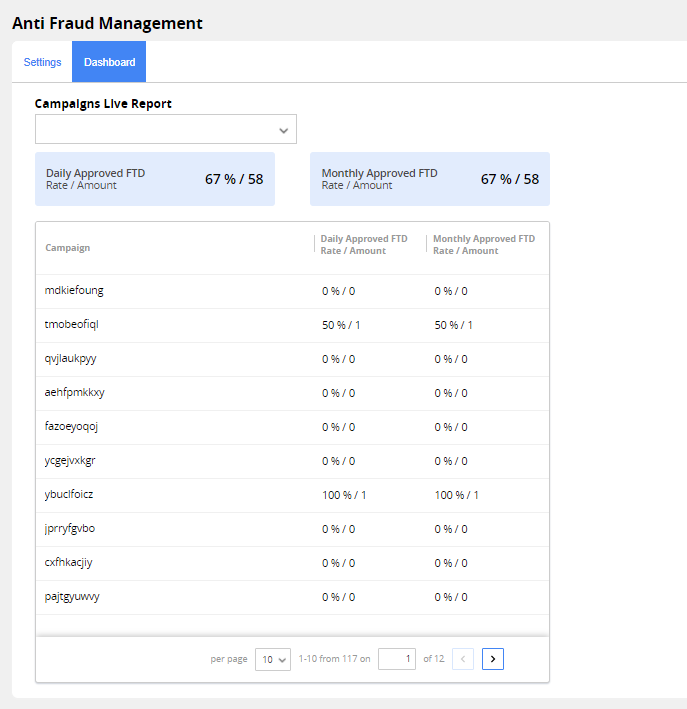
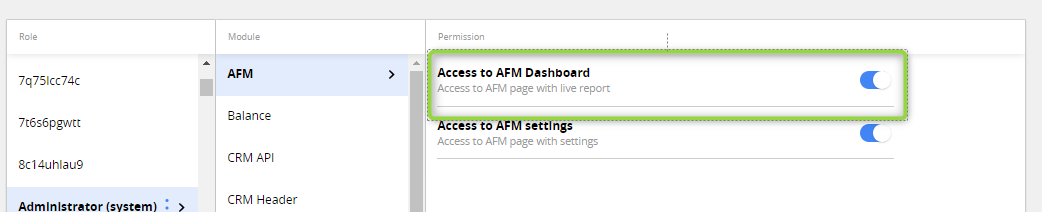
Permissions: AFM > Access to AFM Dashboard.
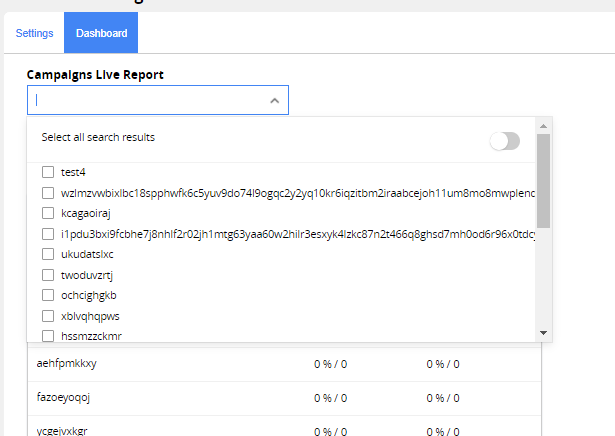
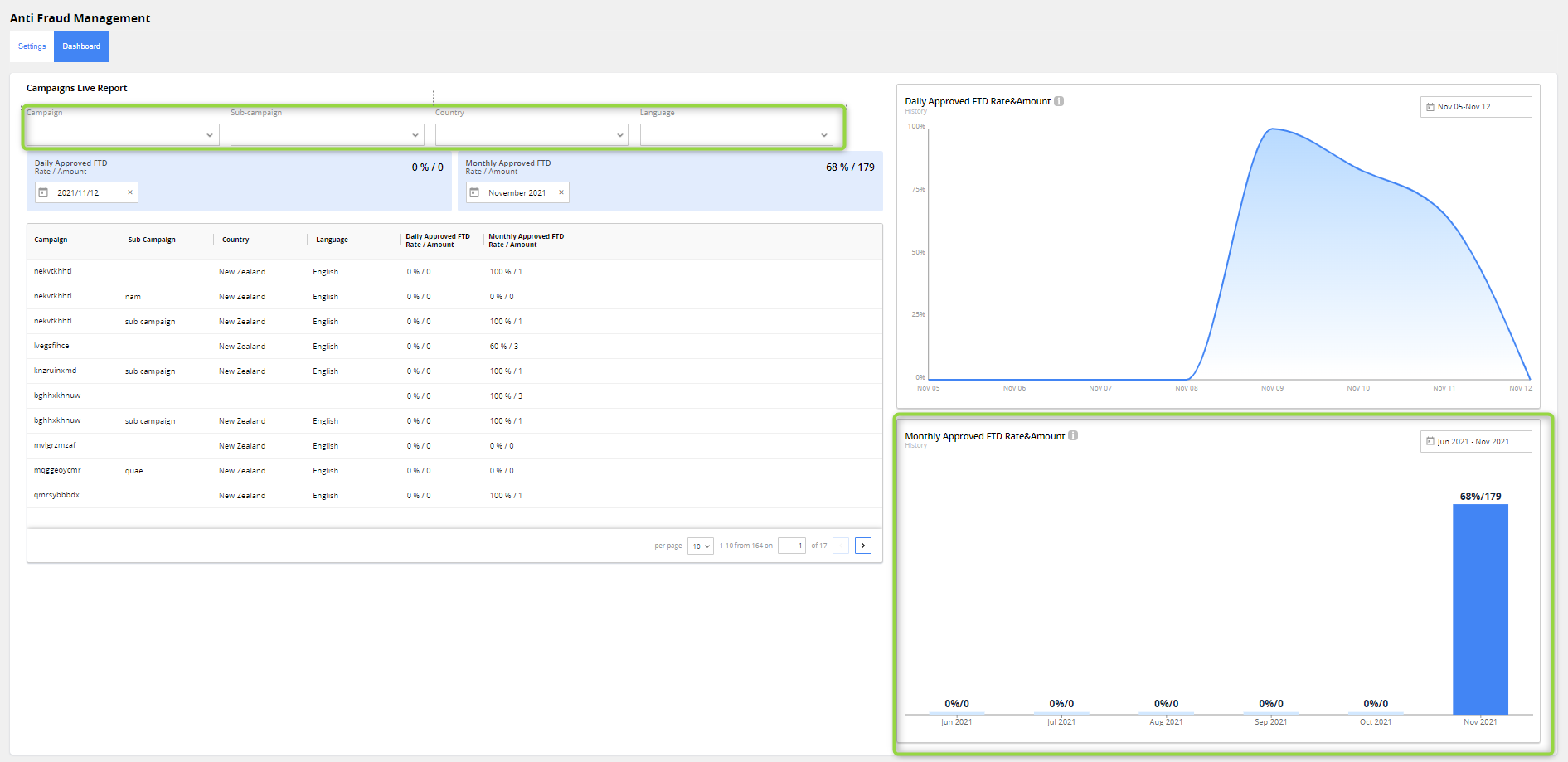
Campaign filter
You can select campaigns from the list or select all search results after typing at least two symbols in the search field.
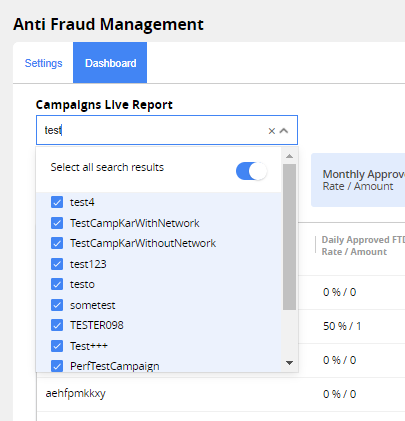
Filter is applied to all the data on the page.
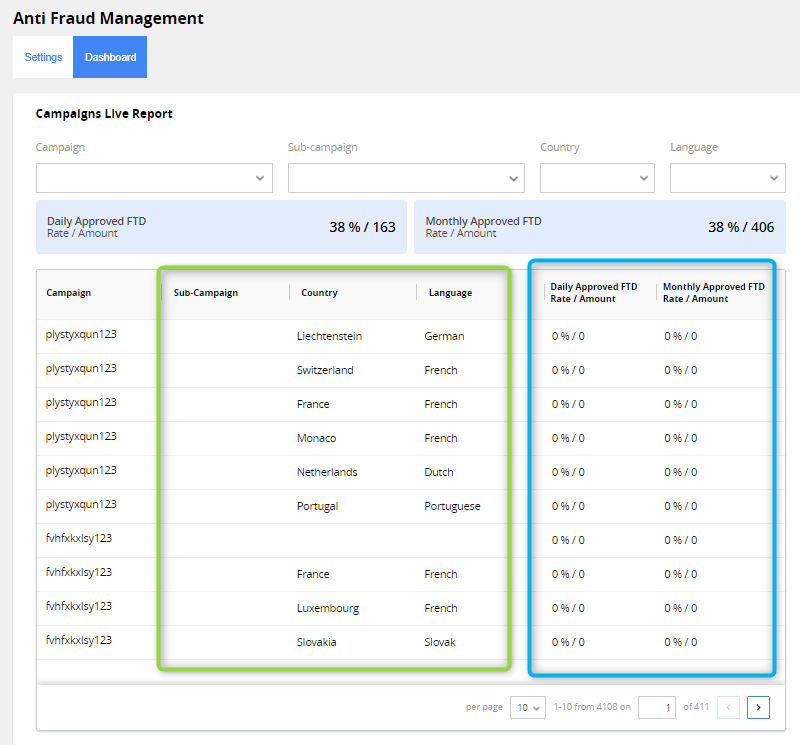
Filters for sub-campaign, country, language.
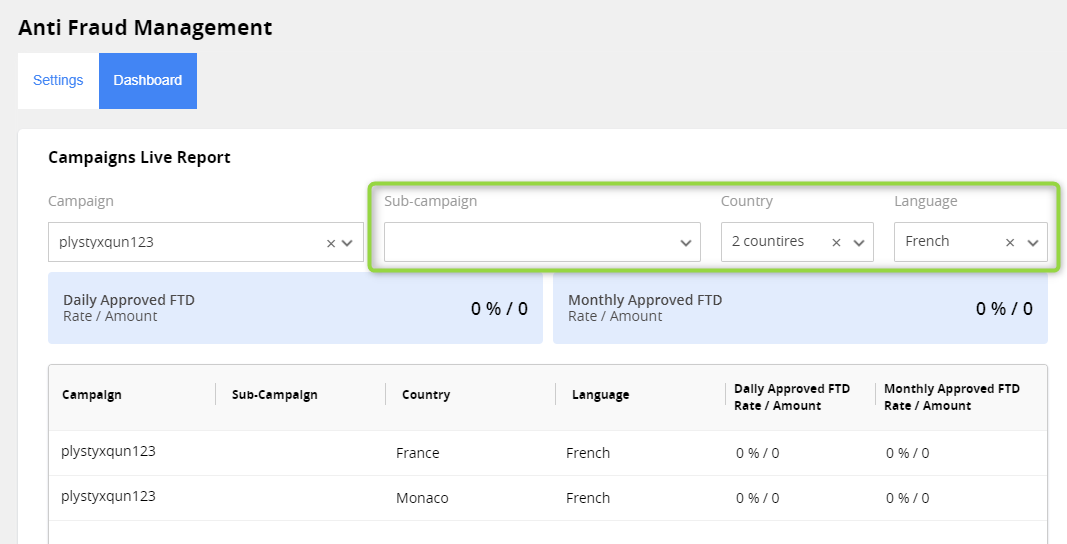
Indicators include all combinations of selected campaigns with selected sub-campaign, country, language.
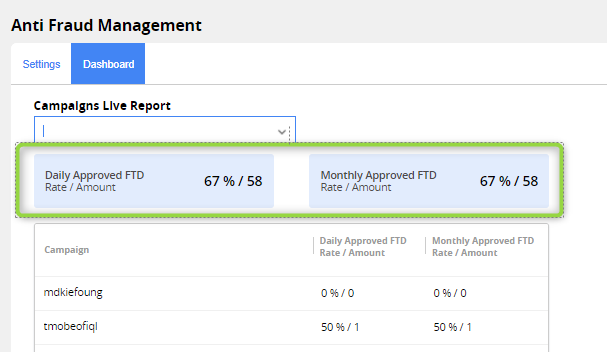
Daily Approved Rate
- Calculated as: Approved FTDs for current day/All FTDs for current day.
- Date counted in UTC.
- Value presented for filtered campaigns.
Daily Approved Amount
- Calculated as: Number of Approved FTDs for current day.
- Date counted in UTC.
- Value presented for filtered campaigns.
Monthly Approved Rate
- Calculated as: Approved FTDs for current month/All FTDs for current month.
- Dates counted in UTC
- Value presented for filtered campaigns.
Monthly Approved Amount
- Calculated as: Number of Approved FTDs for current day.
- Date counted in UTC.
- Value presented for filtered campaigns.
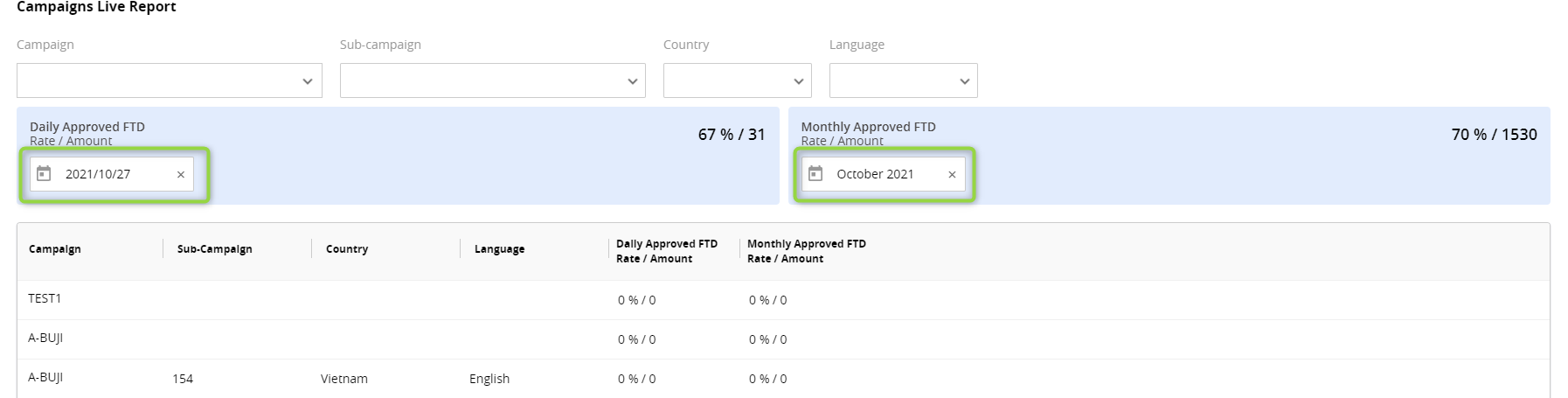
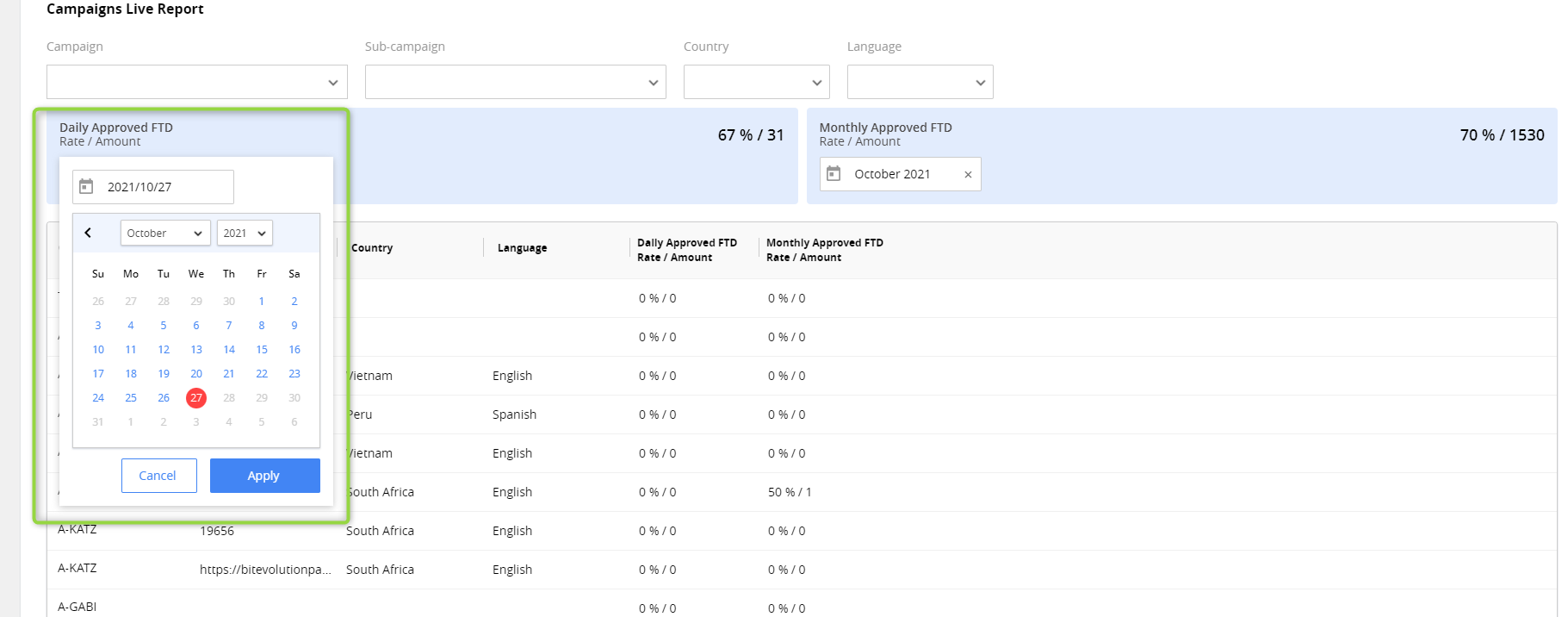
Filters for day & month indicators
- After applying day filter – Daily Approved FTD Rate / Amount in the table below is presented for the selected day.
-
After applying month filter – Monthly Approved FTD Rate / Amount in the table below is presented for the selected month.
-
Both filters can be applied in parallel, they are independent from each other.
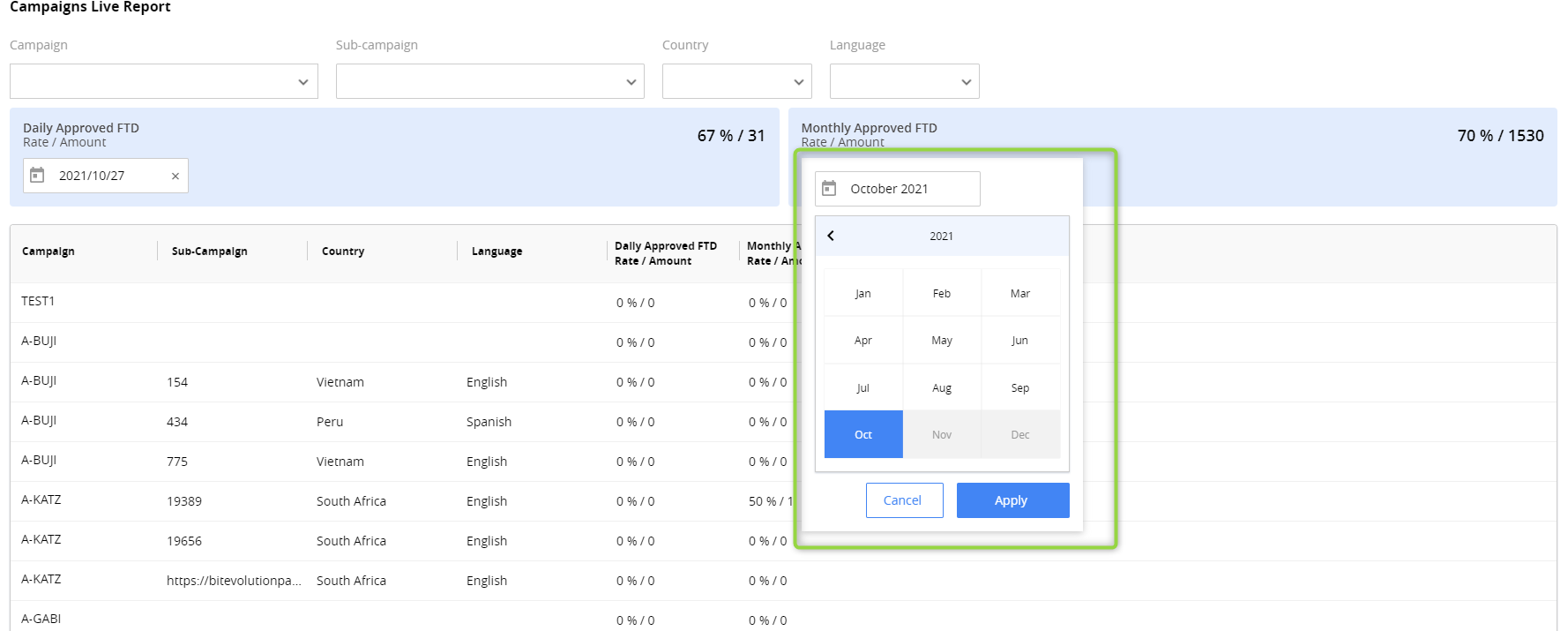
-
Table with campaigns, sub-campaign, country, language.
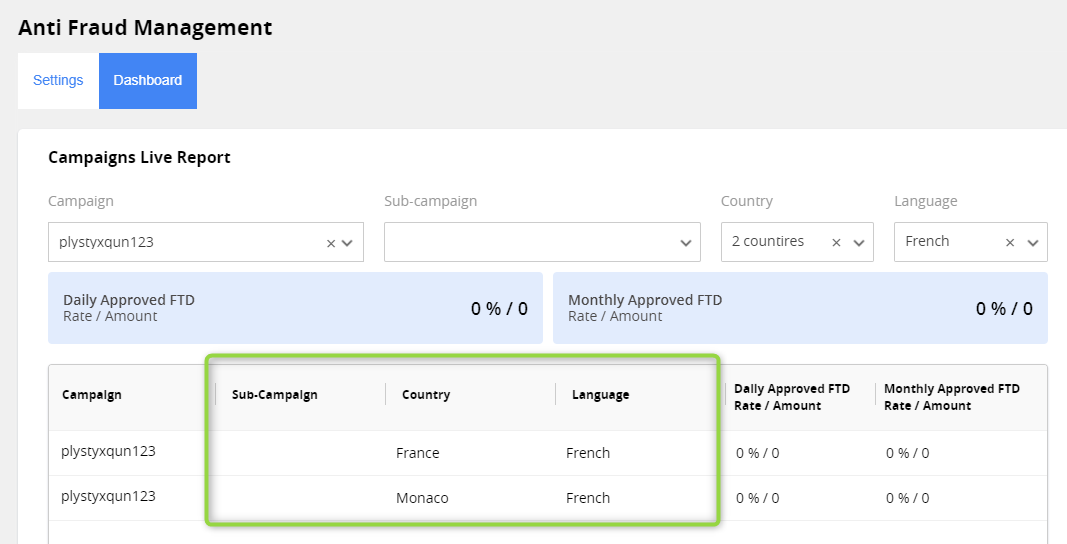
Includes filtered campaigns list with Daily & Monthly Approved Rates + Daily & Monthly Approved Amount for each Campaign.
Chart for Daily Approved FTDs
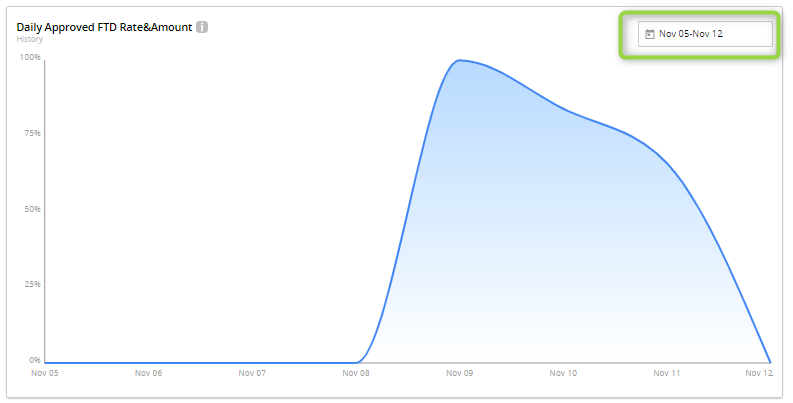
- It shows daily rates of approved FTDs for filtered campaigns. General filters are applied here.
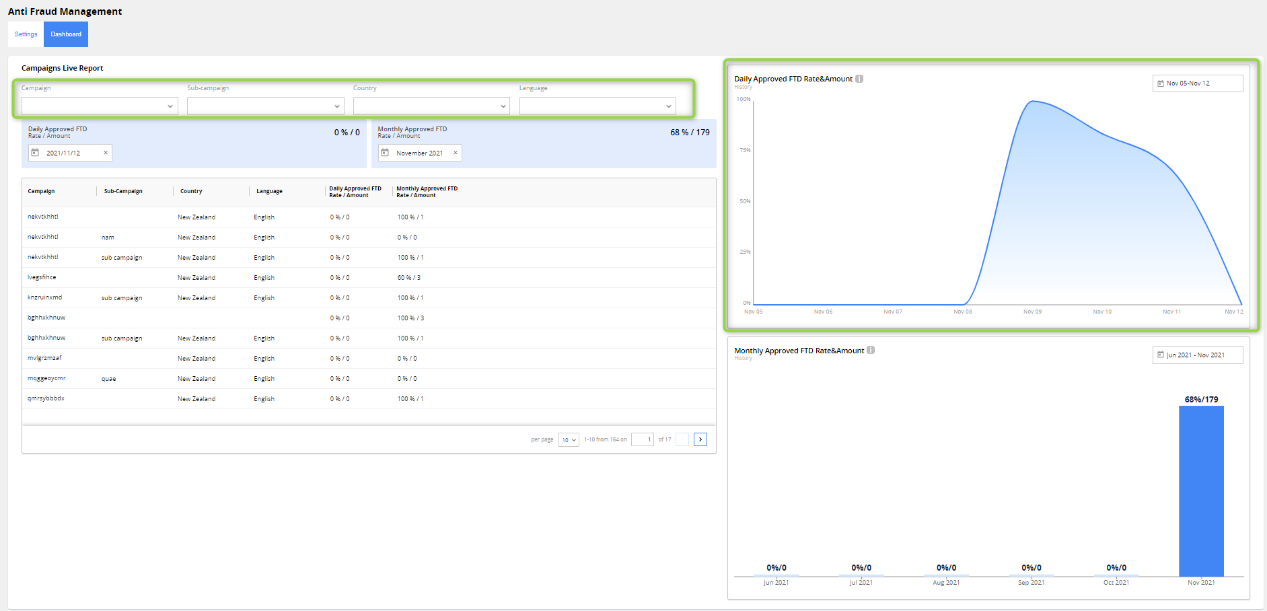
- On hover you can see details about indicator for selected day.
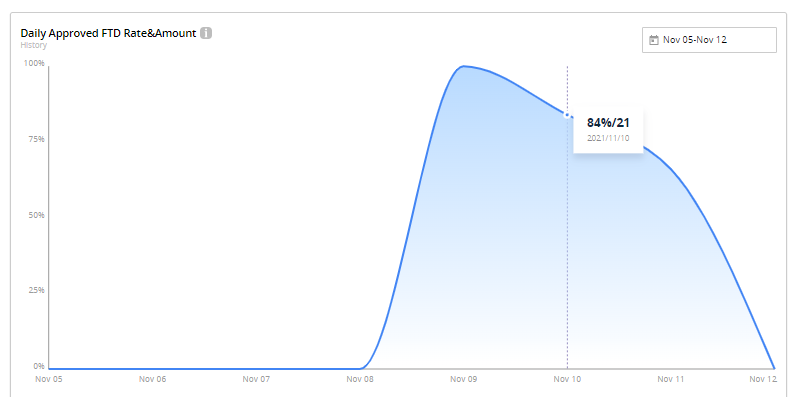
- To select the period to show stats, use the date range filter. The default period is the last seven days, including the current day.
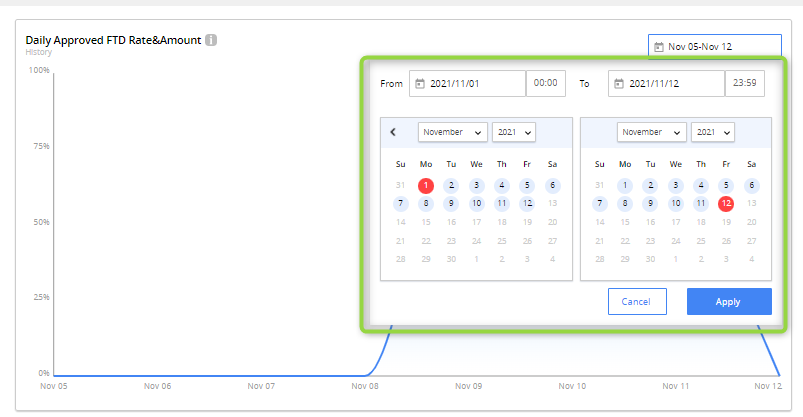
- The selection in the calendar for daily chart is limited by 90 records.
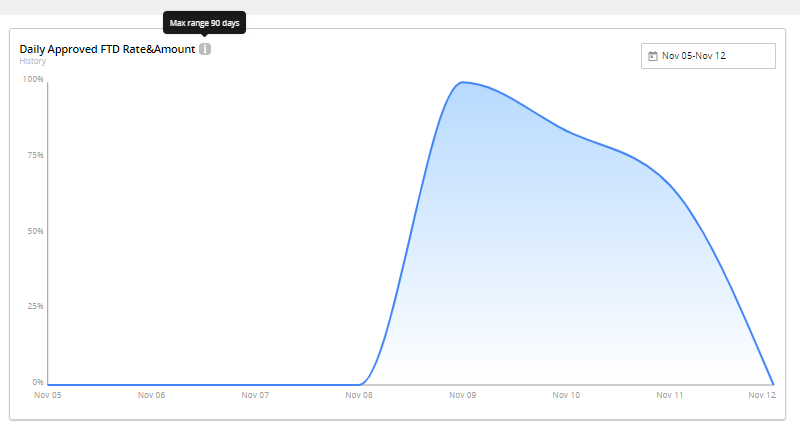
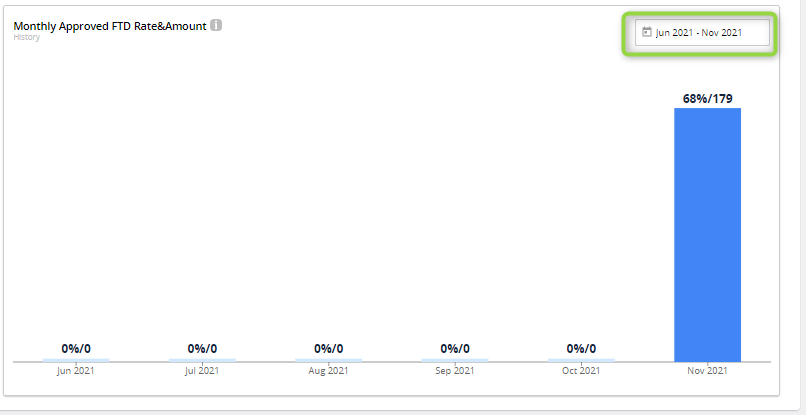
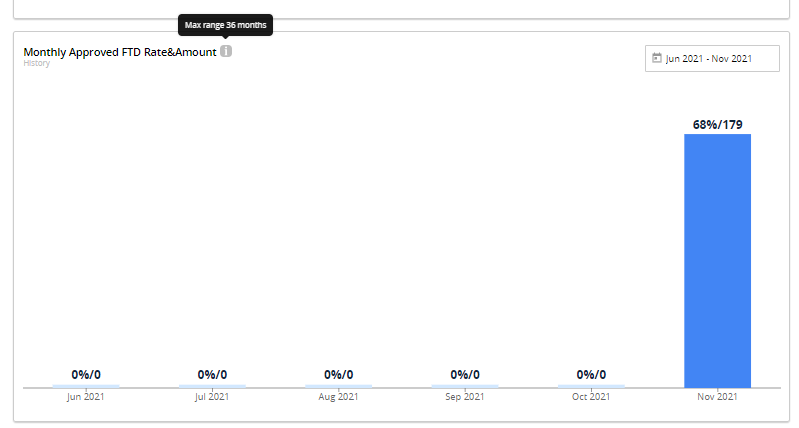
Chart for Monthly Approved FTD
- Shows monthly rates of approved FTDs for filtered campaigns (general filters are applied.)
-
To select the period to show stats, use the date range filter. The default period is the last six months, including current month; max selection is 36 months.

Note. In all calculations on AFM dashboard (indicators, table, charts) AFM date is using.